Companies, operators and permissions

Everyone sees their part, the administrator sees it allSeveral companies in one database, a structure for each, and permissions you can explain.

A group of companies works in one database — customers and items are shared, and operators switch company in the header. You grant permissions through roles, set individual exceptions on the operator, and the system shows where every right comes from. Holidays, a locked account, “why can't I see that button?” — each has a ready answer.

Several companies in one databaseOrganisational structureEmployees and operatorsPassword or Windows accountRoles and exceptionsHoliday coverSessions and sign-in logView as operator

What you gain

Several companies, one database

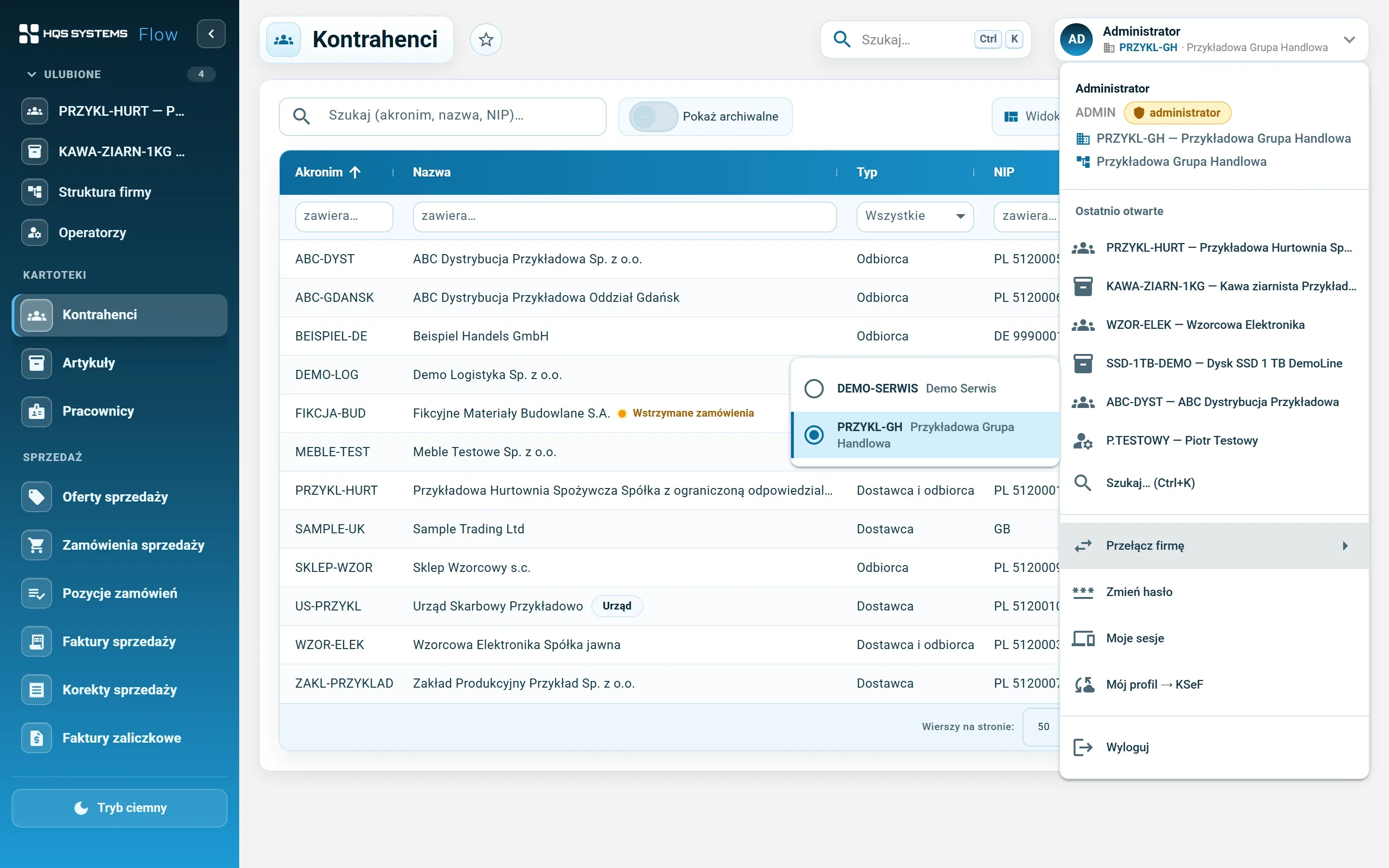
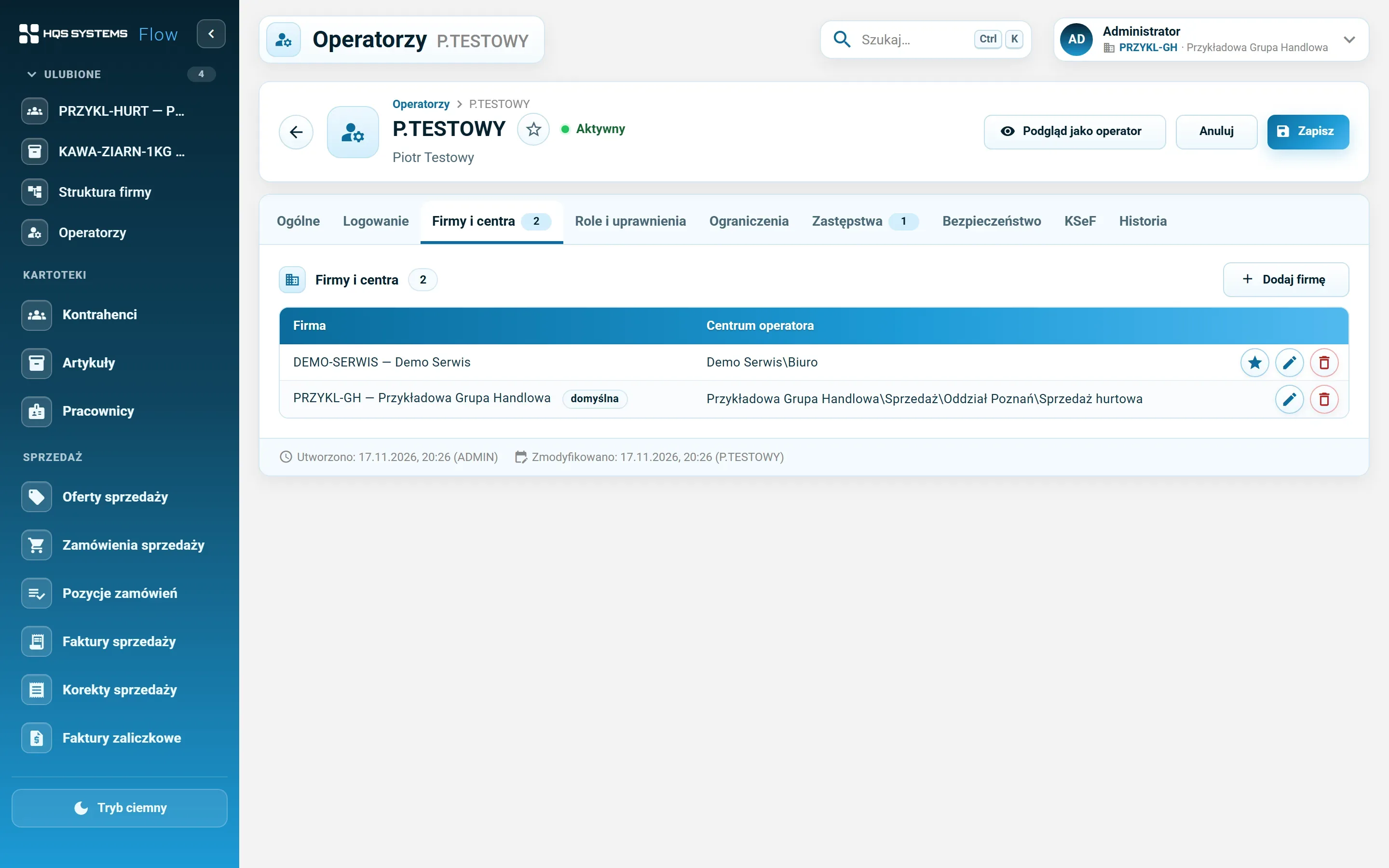
Each company has its own registration data and its own structure, while customers and items are shared — no need to create them several times. Operators get access to selected companies and switch between them in the header, without signing out.

An organisational structure familiar from Comarch ERP XL

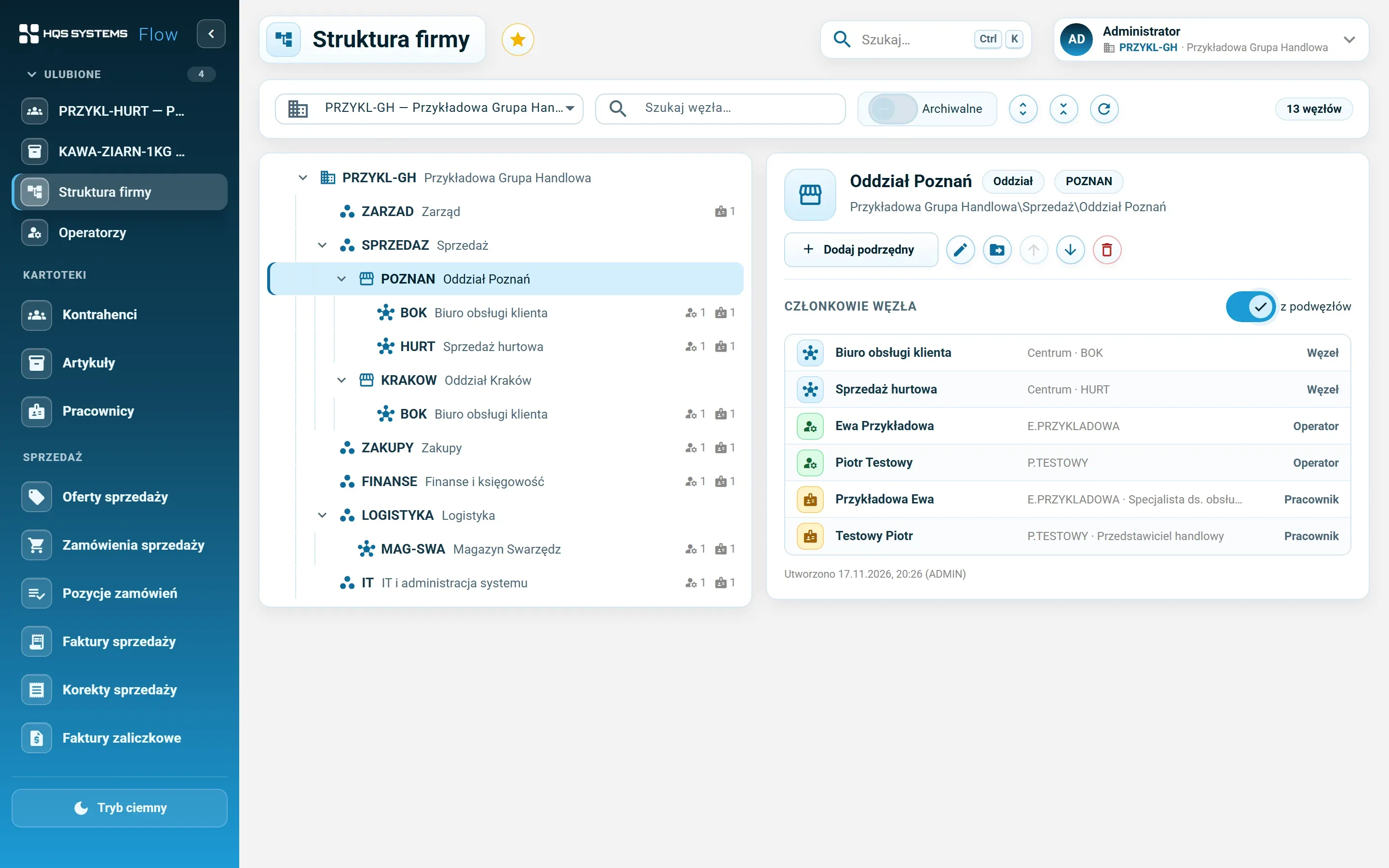
Modelled on the Comarch ERP XL structure, so its users will find their way quickly — though it is not a copy. A tree of branches, departments and centres for each company. Select a node to see its sub-nodes, operators and employees — for the whole subtree too. A node in use is archived rather than deleted.

An employee is not always a user

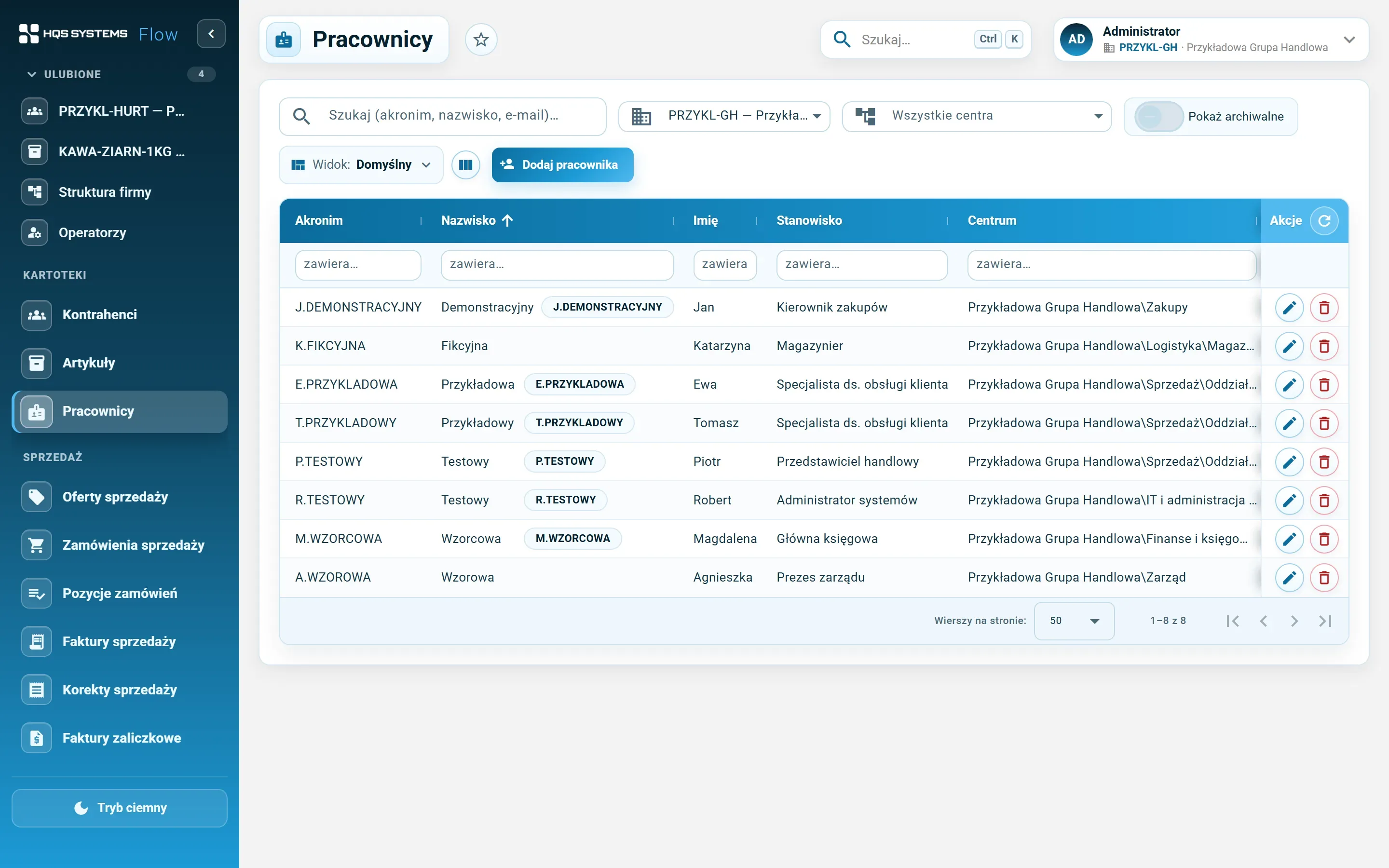
The employee register (position, centre, employment period, contact details) is separate from operator accounts. A warehouse worker needn't have a login, and a warehouse workstation can have an account with no person attached.

A password or a Windows account

Password sign-in with a complexity policy, a forced change at first sign-in and a lockout after several failed attempts — or a Windows domain account with no separate password. You can also allow Windows sign-in only.

Roles and per-operator exceptions

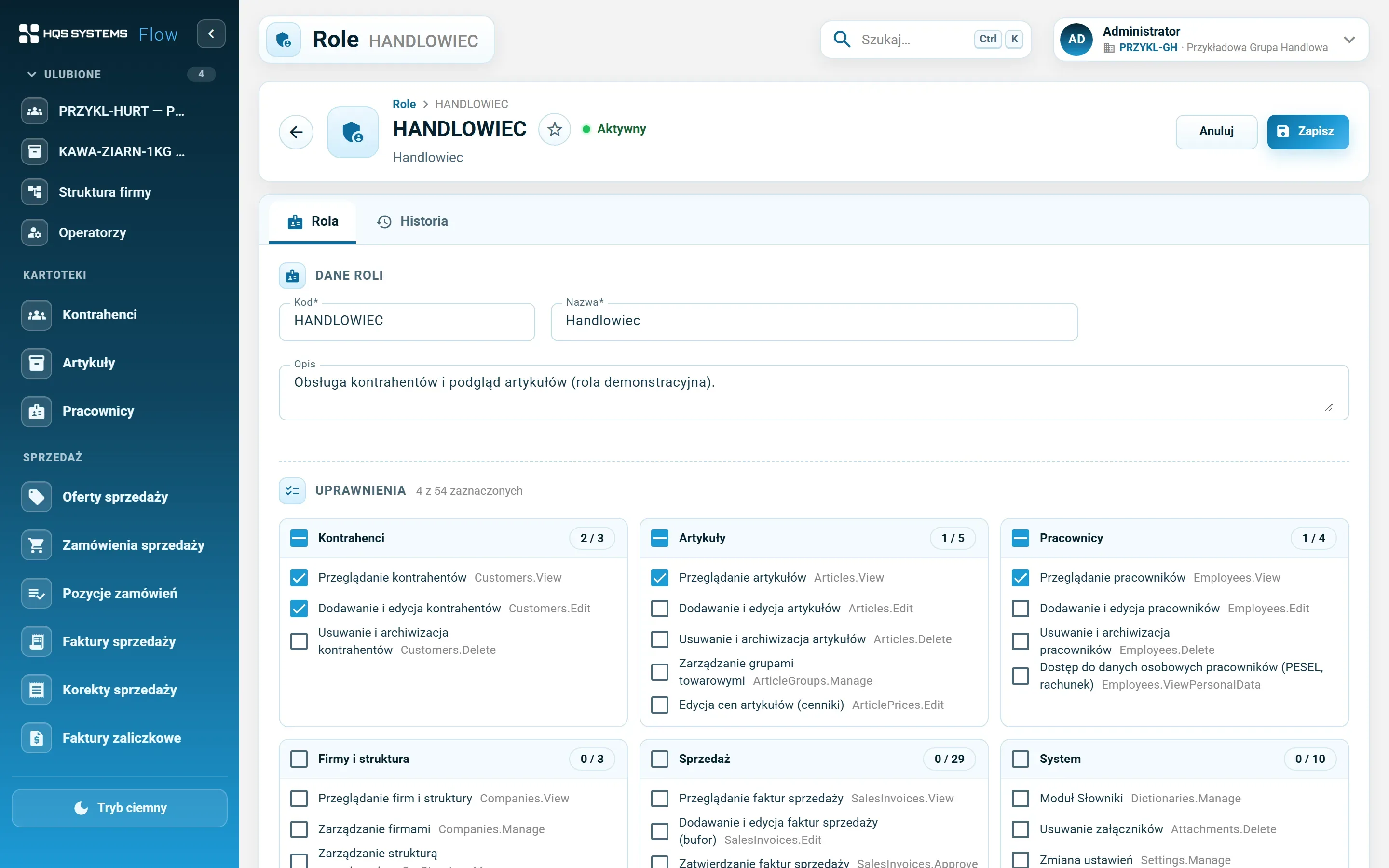
You grant permissions through roles (e.g. Sales, Accounting, Read only). When one person needs a little more or less, add an exception on their record — grant or revoke a single right — without creating a new role. Without edit rights a record opens read only, and menu items with no access simply aren't shown.

You can tell where every right comes from

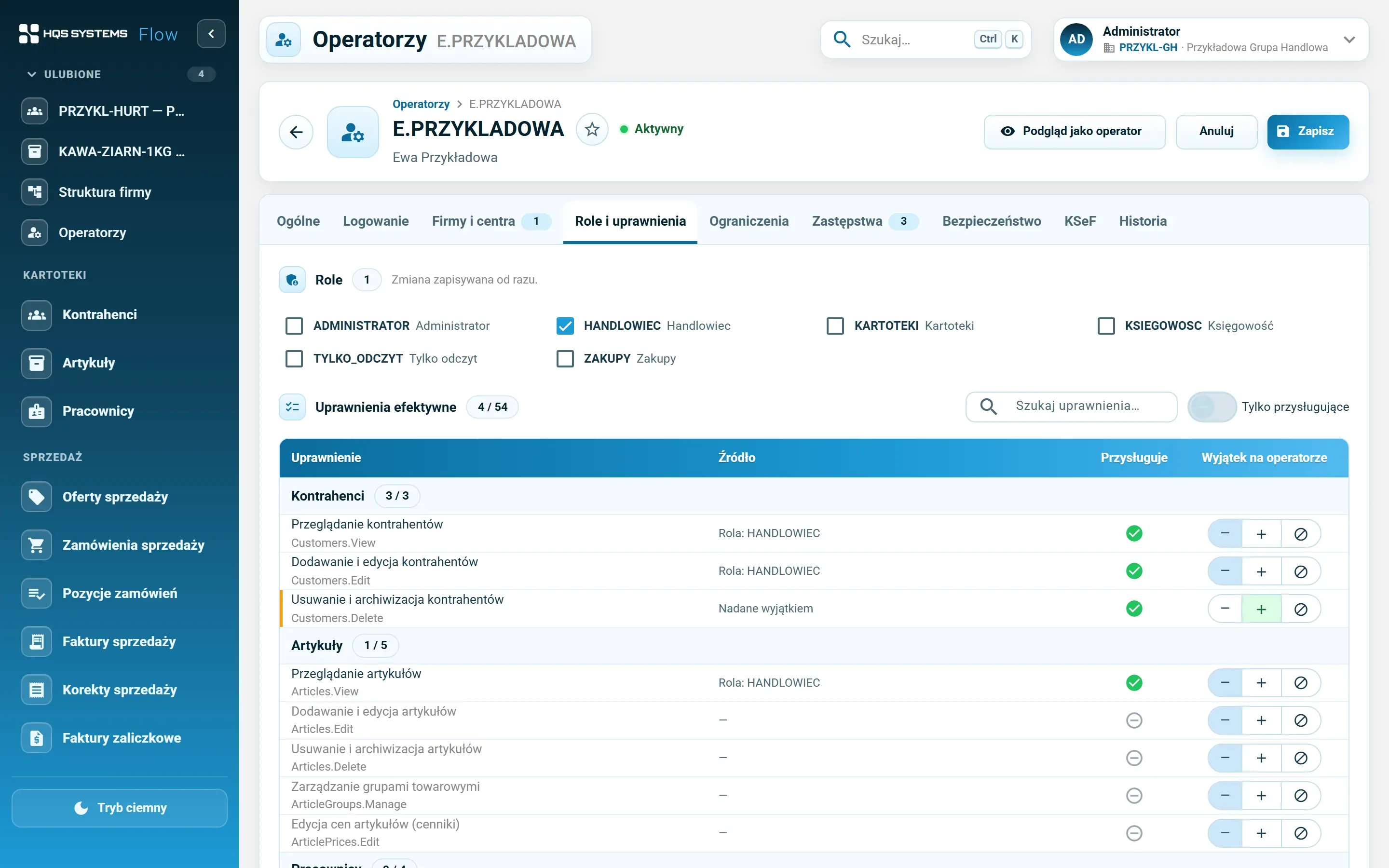
The operator record has an effective-permissions table. Each right shows its source — a role, an exception, a substitution or system administrator — and whether it has been revoked.

Holiday cover

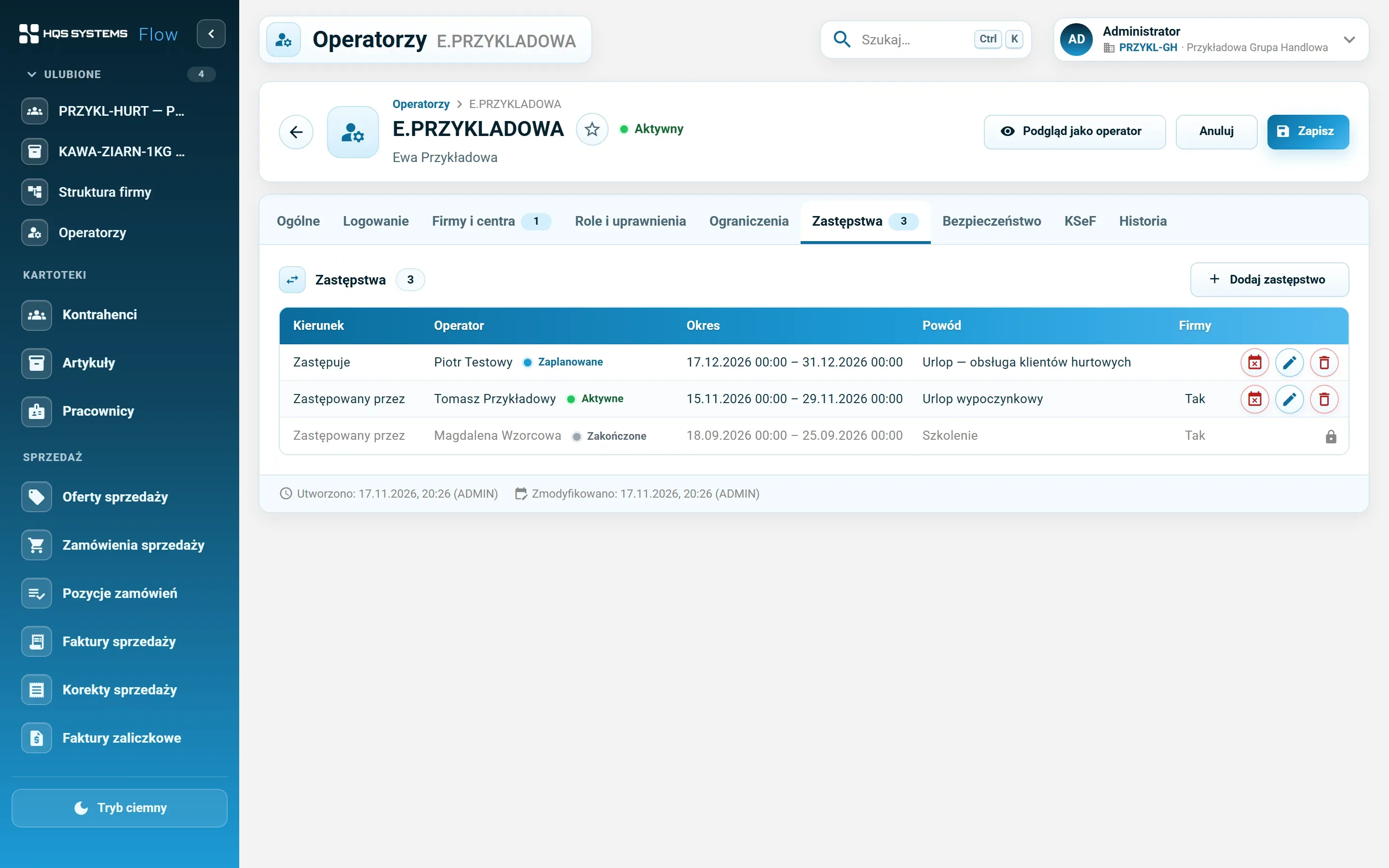
For a set period the substitute gets the permissions of the person they cover for, optionally with access to that person's companies. The substitution expires on its own and can be revoked early. It is not transitive — a substitute's substitute gets nothing.

Sessions and a sign-in log

A list of the operator's active sessions with browser, IP address and last activity — with “Sign out” for one session or all of them. The sign-in log records successful and failed attempts, with the reason for refusal.

View as operator

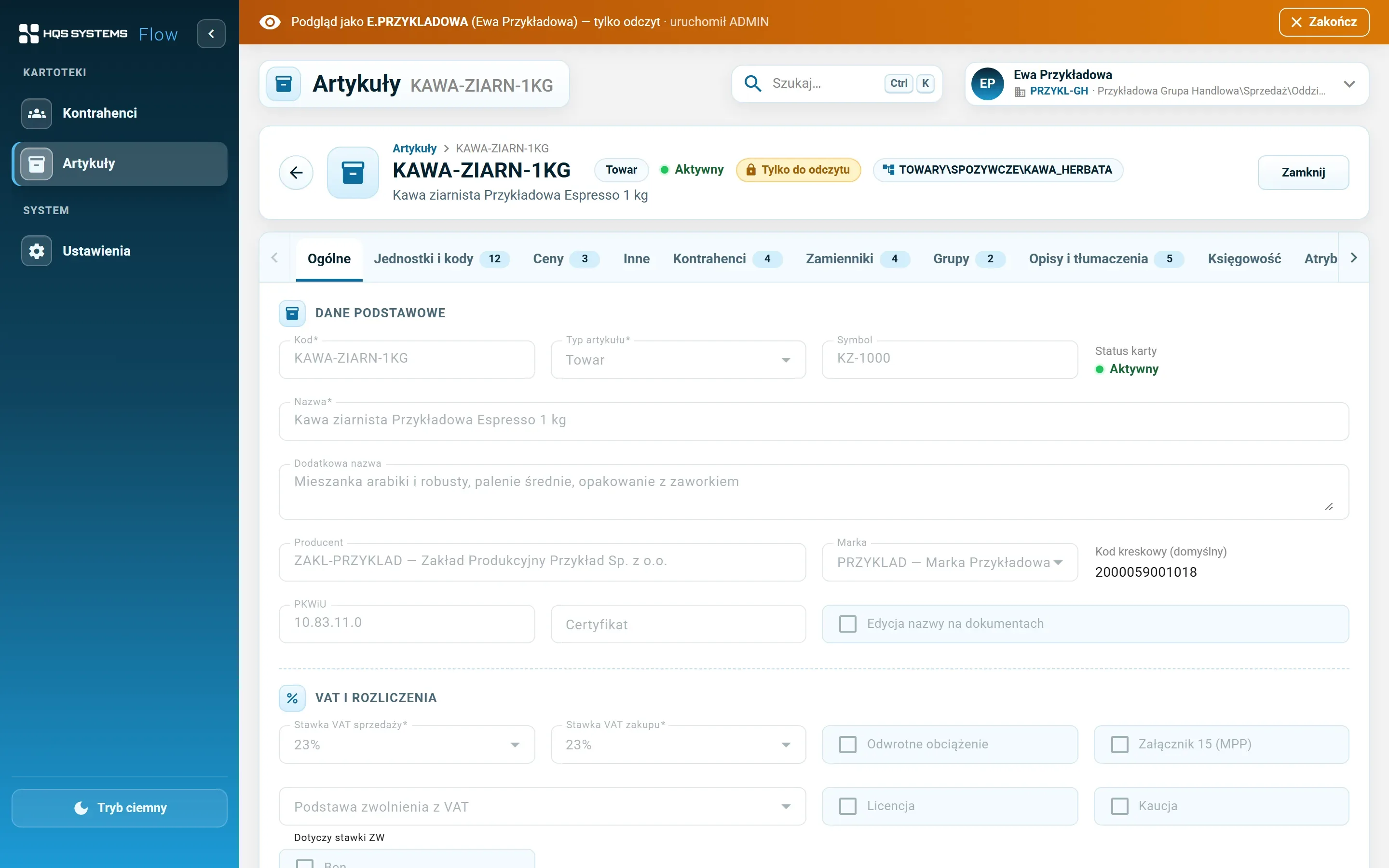
An administrator can open the application with a chosen operator's permissions and see exactly what they see — read only, with a clear bar at the top. The start and end of each view are logged.

Screenshots from the working system

Companies, structure and operators in screenshots

The fictional “Przykładowa Grupa Handlowa” and “Demo Serwis” companies with fictional operators.

The company structure screen — a tree of departments, branches and centres on the left and, on the right, the selected Poznań branch with its sub-nodes, operators and employees
The company structure. The tree on the left, the members of the selected node on the right — with a “from sub-nodes” switch.
The user menu in the header — the current company and centre, recently opened records and the list of companies to switch to
The user menu. Current company and centre, recently opened records, company switching, password change and your own sessions.
The HQSFlow sign-in screen with user name and password fields and a Sign in with Windows button
Sign in with a password or a Windows domain account.
The operator record, Roles and permissions tab — the Sales role ticked and the effective-permissions table with a Source column and exception buttons
Roles and effective permissions. The “Source” column tells you whether a right comes from a role or an exception; an exception is granted or revoked in one click.
The Substitutions tab of an operator record — planned, active and finished substitutions with period, reason and company access
Substitutions — planned, running and finished, with reason and period.
The Security tab — the operator's active sessions with browser and IP address, Sign out buttons and the sign-in log with the result of each attempt
Active sessions with remote sign-out, and the sign-in log.
The Sign-in tab of an operator record — password reset, unlock, password policy and a Windows domain account
Operator sign-in settings — password reset, unlocking the account, Windows domain account.
The Companies and centres tab — the operator's two companies, each with a centre in the structure, and the default company marked
Company access. In each company the operator has their own centre; one company is the default.
The application in view-as-operator mode — an orange bar at the top with an End button and an item record marked as read only
View as operator. Menus, buttons and records exactly as that person sees them — and read only.
Editing the Sales role — code, name, description and a list of permissions grouped by module with checkboxes
A role is a list of permissions grouped by module.
The employee list with code, name, position, centre in the structure and the linked operator
Employees with their centre in the structure and the linked operator account.

Click a screenshot to see it at full resolution. All data in the screenshots is fictional. The application interface is in Polish.

A group of companies in one database

Several companies in separate databases means several records for the same customer, several item lists and a constant question of which version is current. In HQSFlow companies have their own registration data and their own organisational structure, but customers and items are shared. An operator only has access to selected companies — with their own centre in each — and switches between them in the application header. The default company opens automatically after sign-in.

Permissions you can explain

A classic problem: someone can’t see a button and nobody knows why. In HQSFlow an operator’s effective permissions are calculated on their record, and every right shows its source:

  • role — a shared set for a job (with the role’s name),
  • exception — a right granted to or revoked from this person only,
  • substitution — a right taken over for the duration of a substitution (with the name of the person covered),
  • system administrator — an account with full access.

If that is still not enough, the administrator starts view as operator and sees the application through their eyes — without knowing their password and without being able to change anything in that mode.

Secure accounts without extra work

  • First sign-in requires changing the password set by the administrator.
  • Password policy: at least 8 characters, an upper-case and a lower-case letter and a digit.
  • Lockout for 15 minutes after 5 failed attempts; the administrator can unlock the account earlier.
  • Blocking or deactivating an account takes effect immediately — open sessions included.
  • The last administrator cannot be blocked or deleted, so you can’t lock yourselves out of your own system.
  • Windows sign-in for companies with a domain — no separate password to remember.

Holiday cover instead of shared passwords

When someone goes on holiday there is no need to hand over a password or temporarily widen the substitute’s role. The administrator enters a substitution with a period and a reason: for that time the substitute also has the permissions of the person covered (and, if ticked, access to their companies). After the end date everything returns to normal on its own, and the list of substitutions remains as a record — who, for whom, when and why.

Let's talk about your company

Tell us how many companies, customers and items you have and what you use today. We will show HQSFlow on examples close to yours and tell you honestly what it already handles — and what it doesn't yet.

Book a demo

We answer every request personally, usually within one working day.

Please enter your name.
Please enter a valid e-mail address.
Please check the phone number or leave the field empty.
Please tell us briefly what the demo should cover.
How we handle your data

The controller of your data is HQS Systems. We use what you send here only to answer your request and to carry on the resulting conversation, and we keep it no longer than that requires. You can ask us at any time to show, correct or delete your data by writing to office@hqs.cloud.