Offers and orders

From offer to invoice, without retypingEvery line knows where it came from and how much of it has already been invoiced.

A salesperson issues an offer, the customer accepts it, one command turns the offer into an order, and the order becomes an invoice — in full or in parts. Document states are the same as in Comarch ERP XL, so everyone can see what awaits confirmation, what is being fulfilled and what is left to invoice. Advances, reservations and related documents live on the order, not in a separate notebook.

Sales offer (OS)Sales order (ZS)Comarch ERP XL statesConfirmationsConvert to orderPartial fulfilmentOrder linesAdvancesOrder correctionReservations and warehousesPDF printouts

What you get

States sales teams know

Offer — unconfirmed, confirmed, accepted, rejected, sent, order generated, cancelled. Order — unconfirmed, confirmed, in progress, fulfilled, closed, rejected, cancelled. Confirming and closing also in bulk, rejection with a reason from a dictionary.

One command turns an offer into an order

“Convert to order” — from one offer or several at once. The system controls quantities across further orders from the same offer and warns when the offer has expired or was rejected.

Partial fulfilment into invoices

Several invoices from one order, one invoice from several orders — with chosen lines and quantities. Invoicing more than ordered is allowed, as in Comarch ERP XL, but the surplus doesn't fulfil the order. Deleting or cancelling an invoice reverses the fulfilment.

The “Order lines” list

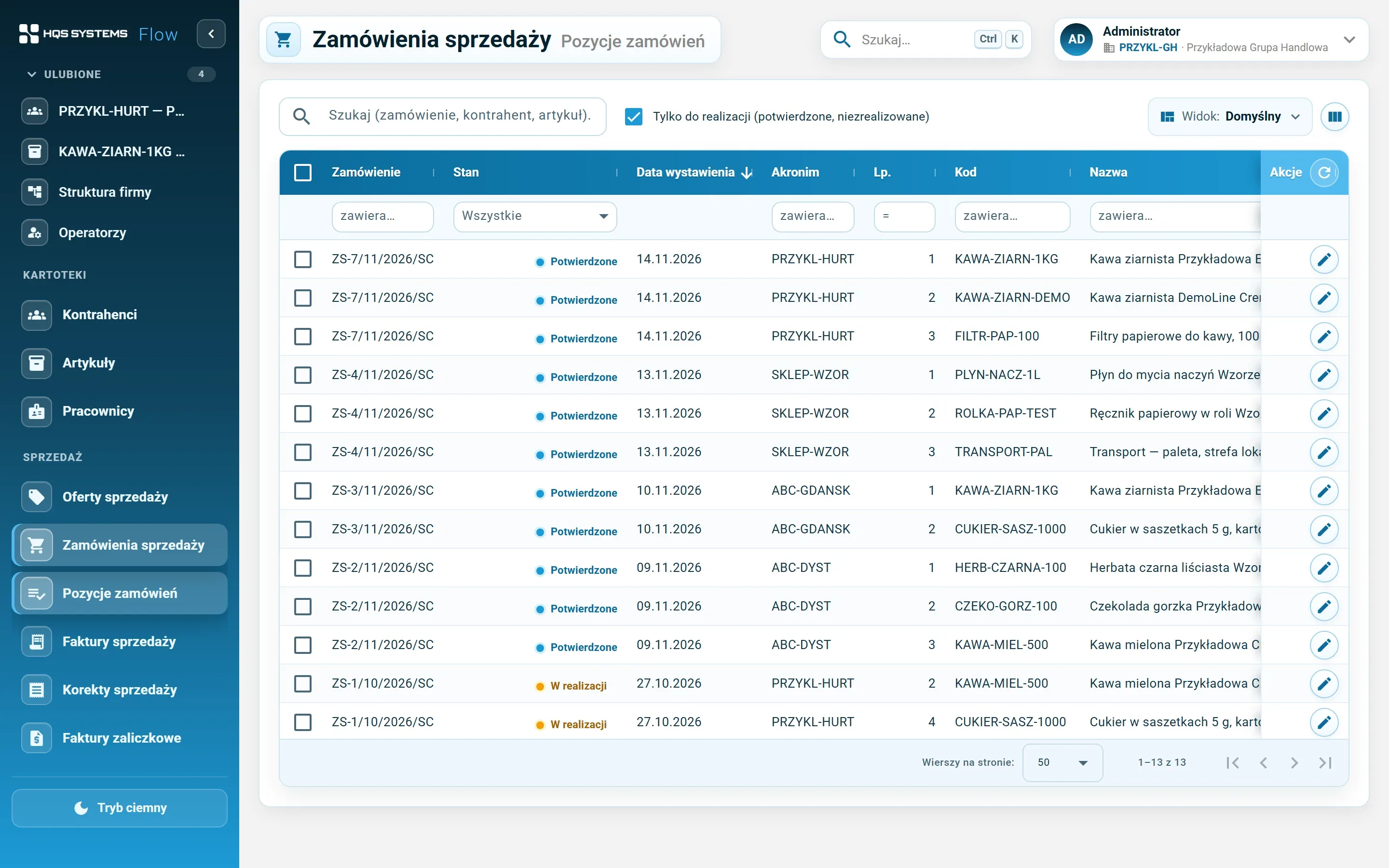
All unfulfilled lines of confirmed orders in one table, with filters. Select lines of different customers and invoice them with one click — each customer gets a separate draft invoice, and the system shows a report at the end.

Advances from the order

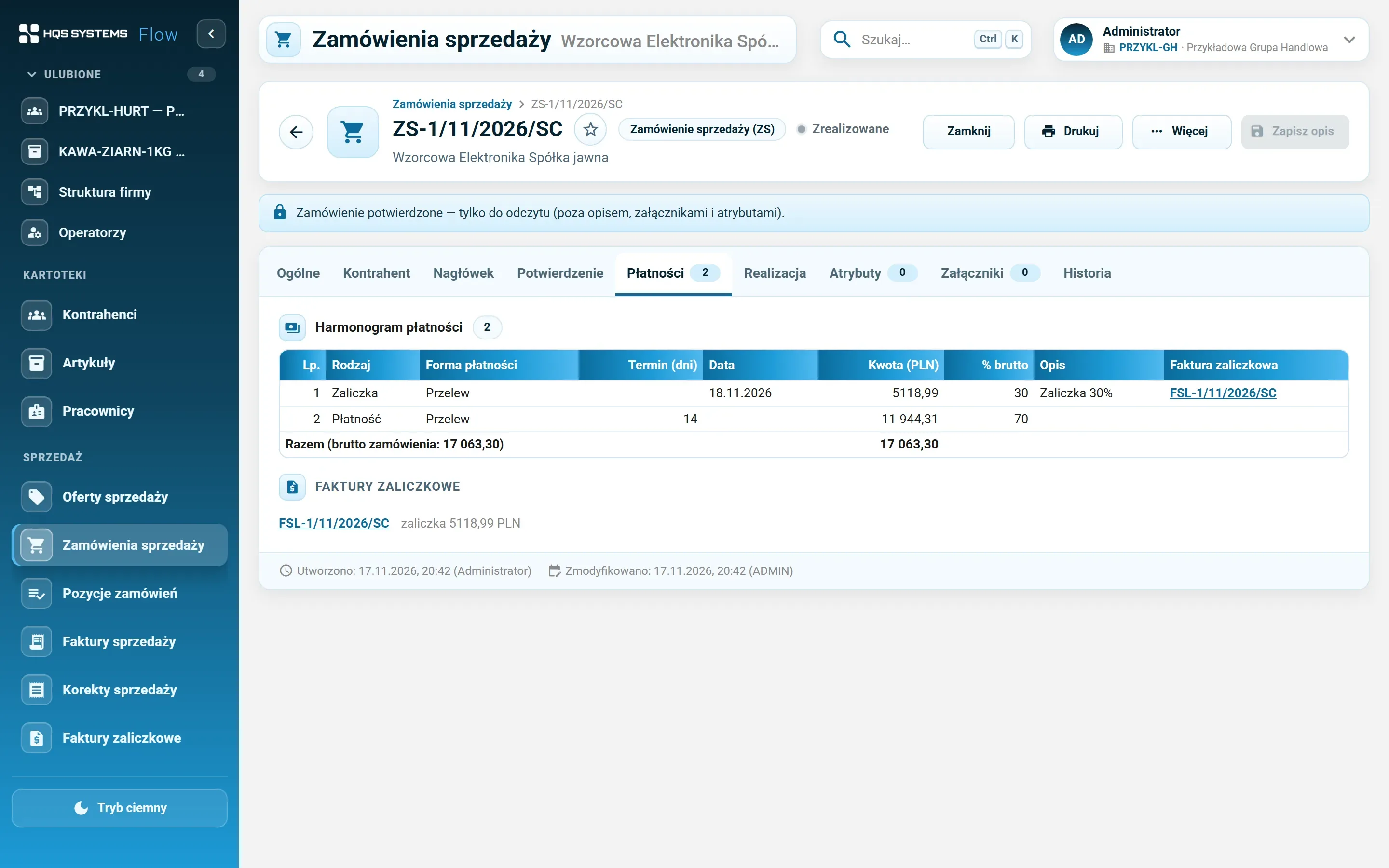
An order payment schedule with “Advance” payments. An advance becomes an advance invoice linked to the order, and the final invoice suggests the advances to settle by itself.

Order correction

When the customer changes their mind, an order correction creates a new order from the unfulfilled lines and closes the corrected one. A confirmed order can also be edited with a permission — lines already fulfilled can't be changed.

Quantity reservations and warehouses

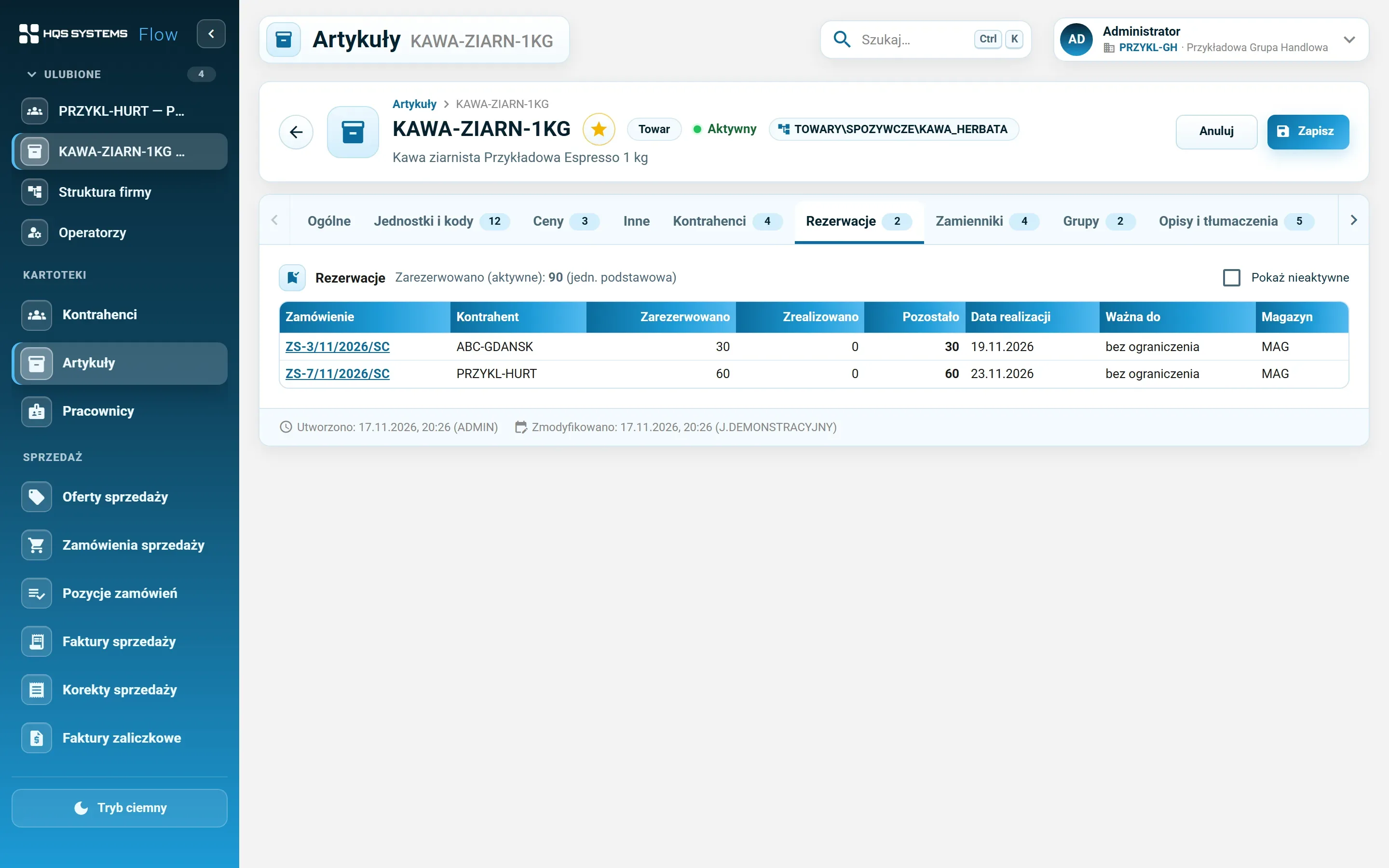
A confirmed order reserves the item quantity — the “Reservations” tab on the item shows for whom and until when. A warehouse dictionary, a default warehouse in the document definition, in the header and on the line. A “minus” invoice correction can restore fulfilment and the reservation.

Printouts for the customer

Offer, order and order confirmation as PDF.

Everything linked, with history

Offer, order, invoices, corrections and advance invoices point to each other; the “Fulfilment” panel shows the documents of every line. Numbering and definitions per company, Ctrl+K, favourites and change history work as on the other documents.

Screenshots from the working system

Offers and orders in screenshots

Fictional customers and fictional orders of the company “Przykładowa Grupa Handlowa”.

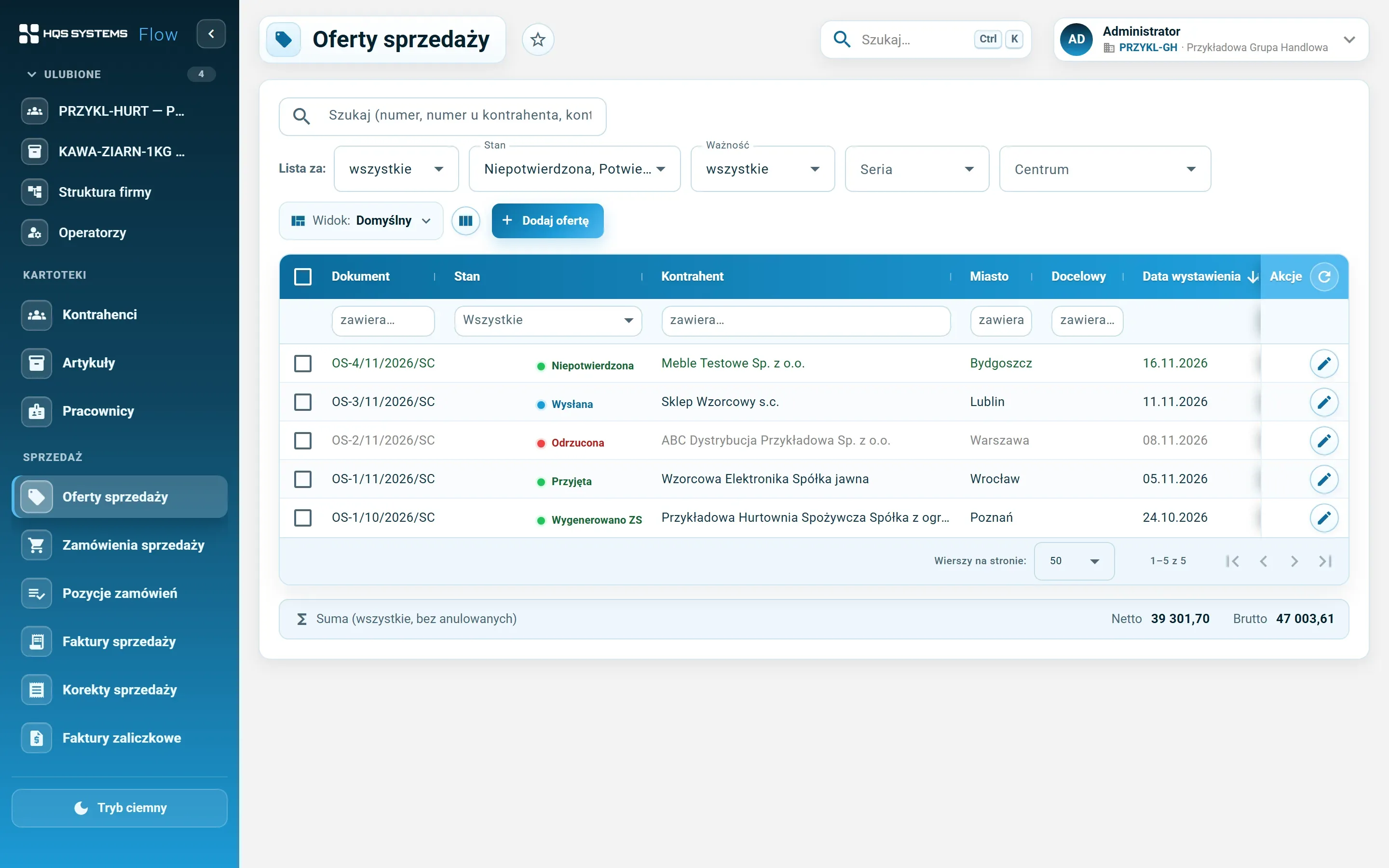
The sales offer list with the states Unconfirmed, Sent, Rejected, Accepted and Order generated, and net and gross totals
Offers with Comarch ERP XL states — from unconfirmed to “order generated”.
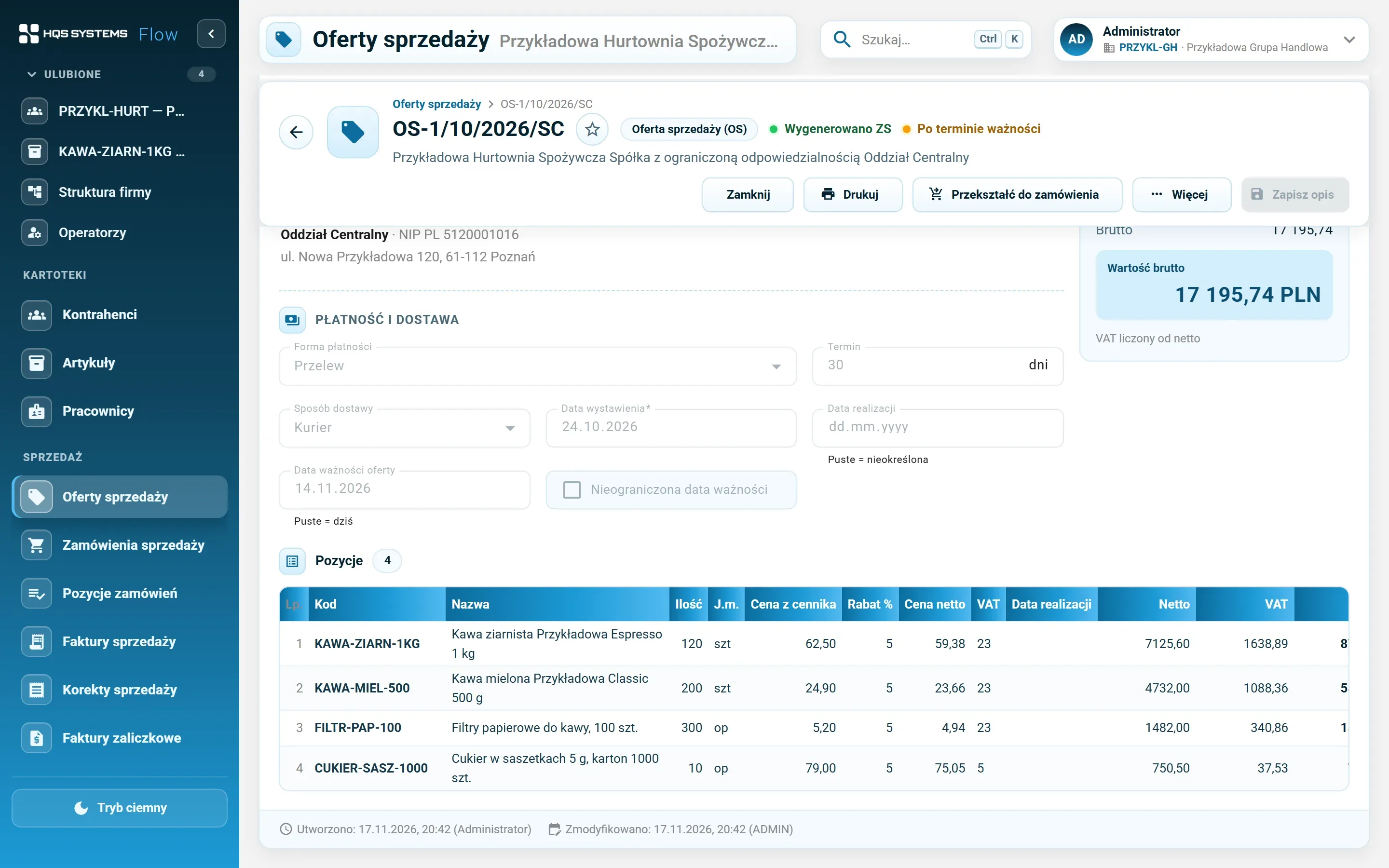
A sales offer — the Convert to order button, an “expired” badge and the offer lines
An offer with “Convert to order” and a warning that it has expired.
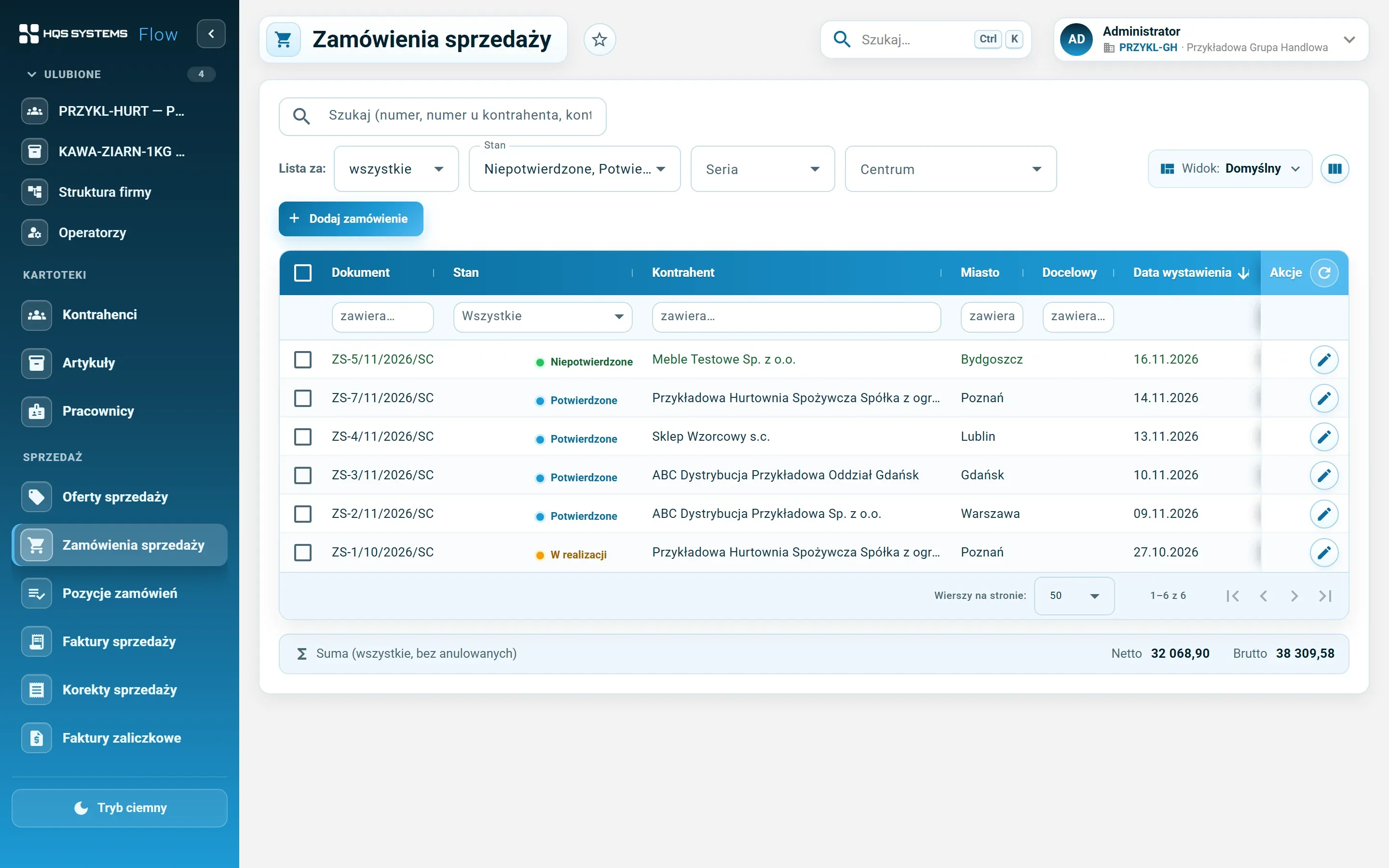
The sales order list — unconfirmed, confirmed and in-progress orders with issue dates and totals
Orders by state. By default, the ones that need work.
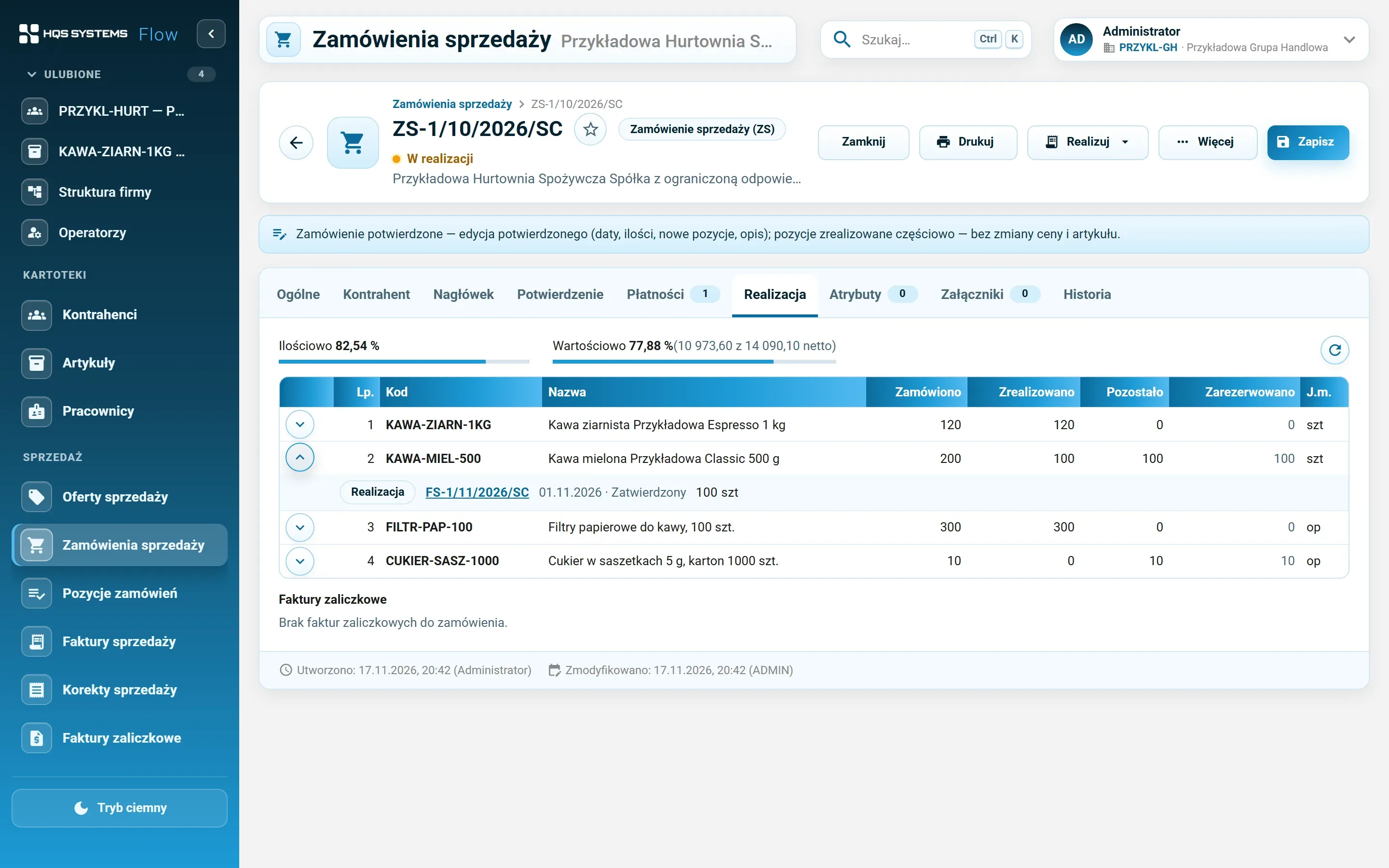
The Fulfilment tab of an order — quantity and value fulfilment percentage, lines with ordered, fulfilled, remaining and reserved quantities, and an expanded invoice for a line
Order fulfilment. How much was ordered, how much invoiced and on which invoice, what's left and what's reserved.
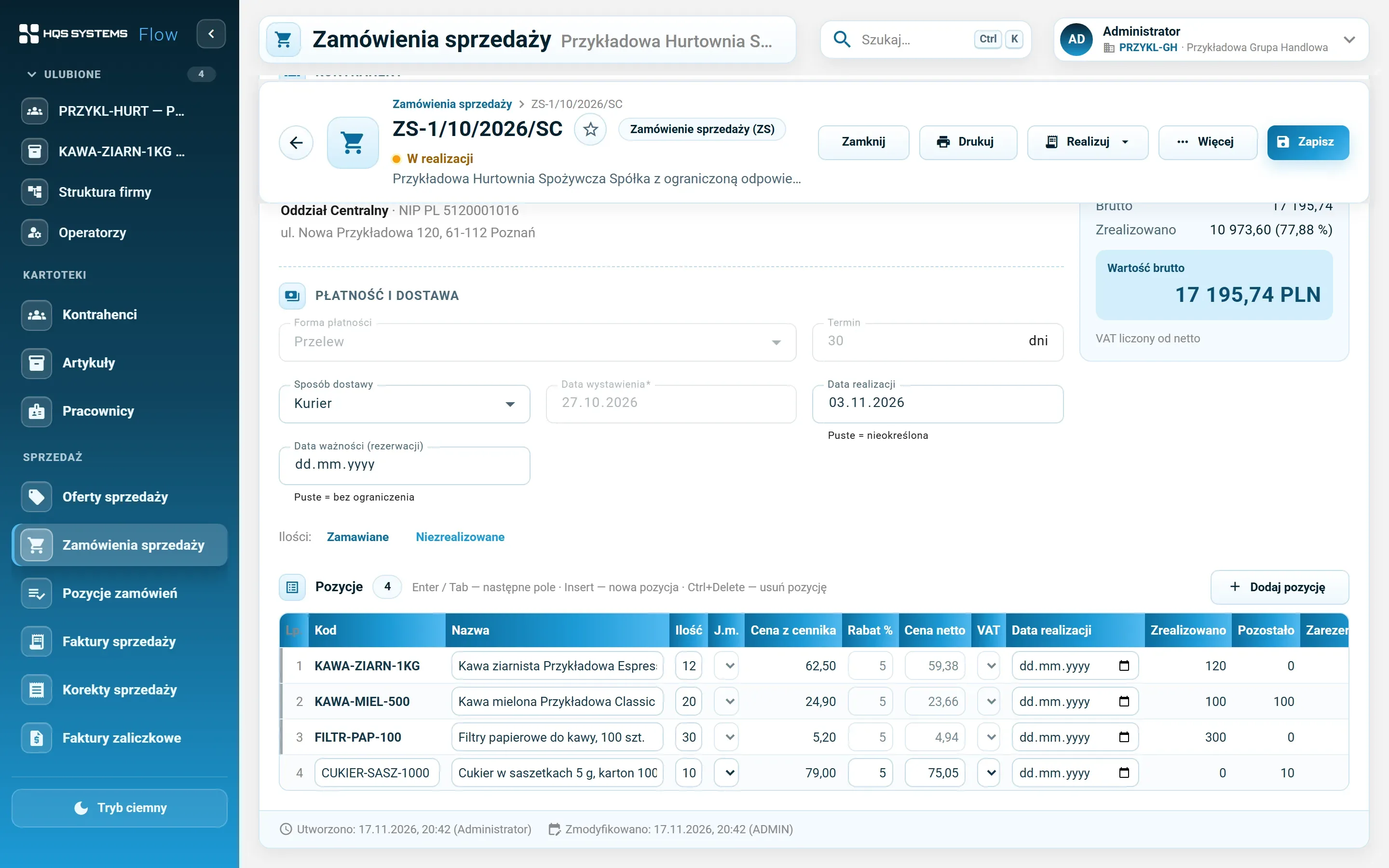
A sales order in progress — lines with ordered, fulfilled and remaining quantities
An order in progress — fulfilled lines can no longer be changed.
The Order lines list — unfulfilled lines of confirmed orders of different customers with checkboxes
Order lines. Select lines of different customers and invoice them in one go.
The order Payments tab — a schedule with a 30% advance and a 70% payment and the linked advance invoice
A payment schedule with an advance and the advance invoice issued from the order.
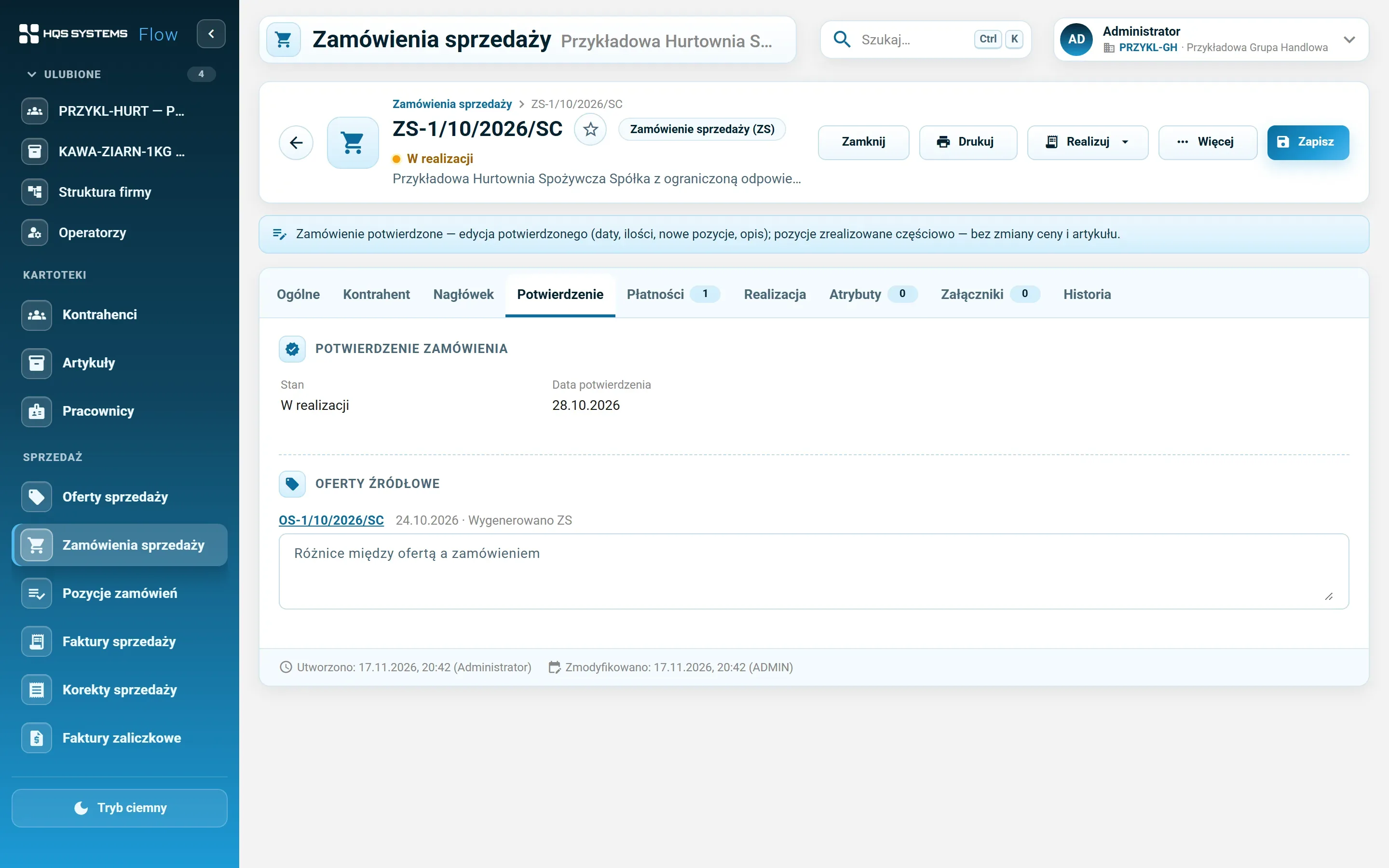
The order Confirmation tab — state, confirmation date and the source offer with a field for differences between offer and order
Order confirmation and the offer it came from.
The Reservations tab of an item — orders with reserved quantity, fulfilment date and warehouse
Item reservations — who, how many, when and from which warehouse.

Click a screenshot to see it at full resolution. All data in the screenshots is fictional. The application interface is in Polish.

Document states as in Comarch ERP XL

Offers and orders go through the same states as in Comarch ERP XL, so salespeople and sales managers speak the same language. The list shows at a glance what awaits confirmation, what is in progress and what has been fulfilled. An order can be reopened, closed, cancelled or rejected with a reason — also for many documents at once.

Fulfilment that stays in sync

An invoice from an order carries its lines together with the link to the order line. That is how HQSFlow knows how much of every line has been invoiced, and nobody has to count it in a spreadsheet:

  • partial fulfilment — choose lines and quantities, the rest waits for the next invoice,
  • many invoices for one order and one invoice for many orders of the same customer,
  • in bulk from the list — orders of different customers become separate draft invoices, with a report,
  • reversal — deleting or cancelling an invoice returns the quantities to fulfilment.

An invoice sent to KSeF from a fulfilled order carries the order number in the FA(3) data — the customer’s own number or the system one, depending on the company setting.

Advances without manual arithmetic

In the order’s payment schedule you mark which payment is an advance. “Add invoice from advances” creates an advance invoice with the order’s number, date and value, and when you issue the final invoice the system suggests the advances of that order to settle.

Let's talk about your company

Tell us how many companies, customers and items you have and what you use today. We will show HQSFlow on examples close to yours and tell you honestly what it already handles — and what it doesn't yet.

Book a demo

We answer every request personally, usually within one working day.

Please enter your name.
Please enter a valid e-mail address.
Please check the phone number or leave the field empty.
Please tell us briefly what the demo should cover.
How we handle your data

The controller of your data is HQS Systems. We use what you send here only to answer your request and to carry on the resulting conversation, and we keep it no longer than that requires. You can ask us at any time to show, correct or delete your data by writing to office@hqs.cloud.