Everyday work

Learn it once, use it everywhereSearch, history, favourites, list views, attributes and attachments work the same in every part of the system.

Whoever can work the customer list can work the item list and every one after it. The same filters, the same column layout saved under your own name, the same Ctrl+K to search and the same “History” tab on every record — less training, fewer mistakes, fewer “who changed this?” questions.

Ctrl+KChange historyFavourites and recentSaved list viewsLists with filtersAttributesAttachmentsLight and dark theme

What works in every register

Ctrl+K — find and go

One search box from anywhere. A customer by code, name or tax ID, an item by code, name, symbol or any barcode, an offer, order or invoice by number, plus employees, operators, companies and screens from the menu. An empty query shows recently opened records. All from the keyboard.

Record change history

The “History” tab on a record shows every save — who, when and which fields changed, with the value before and after. Changes to addresses, contacts, bank accounts or barcodes appear on the main record. Logging is switched on separately for each record type, with a retention period — the database doesn't swell with history nobody reads.

Favourites and recently opened

A star on a record or screen adds it to the “Favourites” section of the side menu — in the order you set yourself. Recently opened records are at hand in Ctrl+K and in the user menu.

Saved list views

Choice and order of columns, their widths, filters, sorting and rows per page saved under your own name. A view can be the default for that list or shared with other operators.

Lists that don't slow down

Search, a filter under every column header, sorting and paging are done by the database server. One switch shows archived records.

Your own fields without programming

The administrator adds attributes — text, number, date, yes/no or a choice from a list — for customers, items, employees or several at once. A field can be required, and values are validated by type.

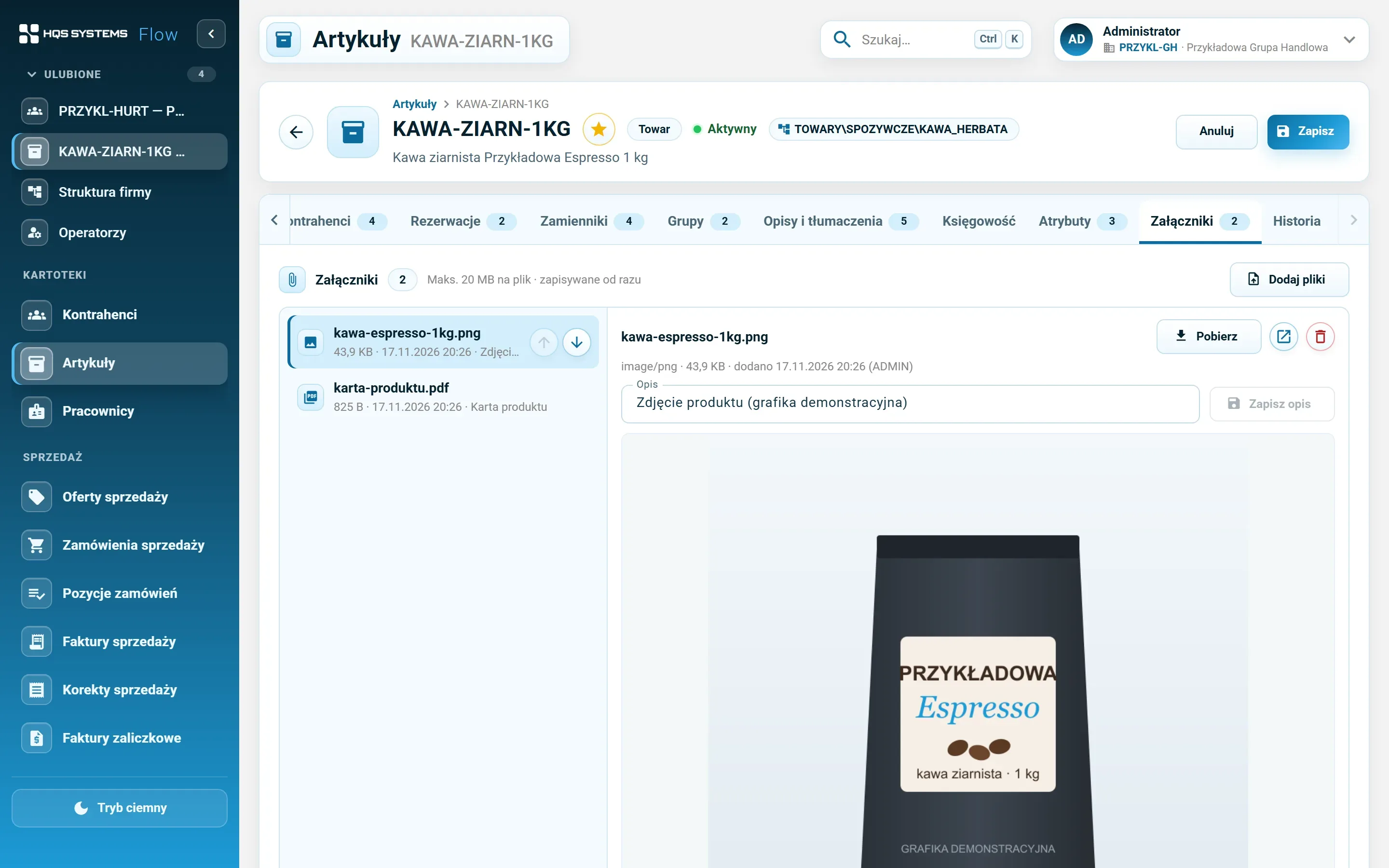
Attachments with preview

Drag files onto the record or pick them from disk. Images and PDFs show right next to the file list. Description, order, download, delete.

Unsaved changes aren't lost

Leaving a record with unsaved changes ends with a question, not lost work. A tab with an error is marked, so you see at once where to fix it.

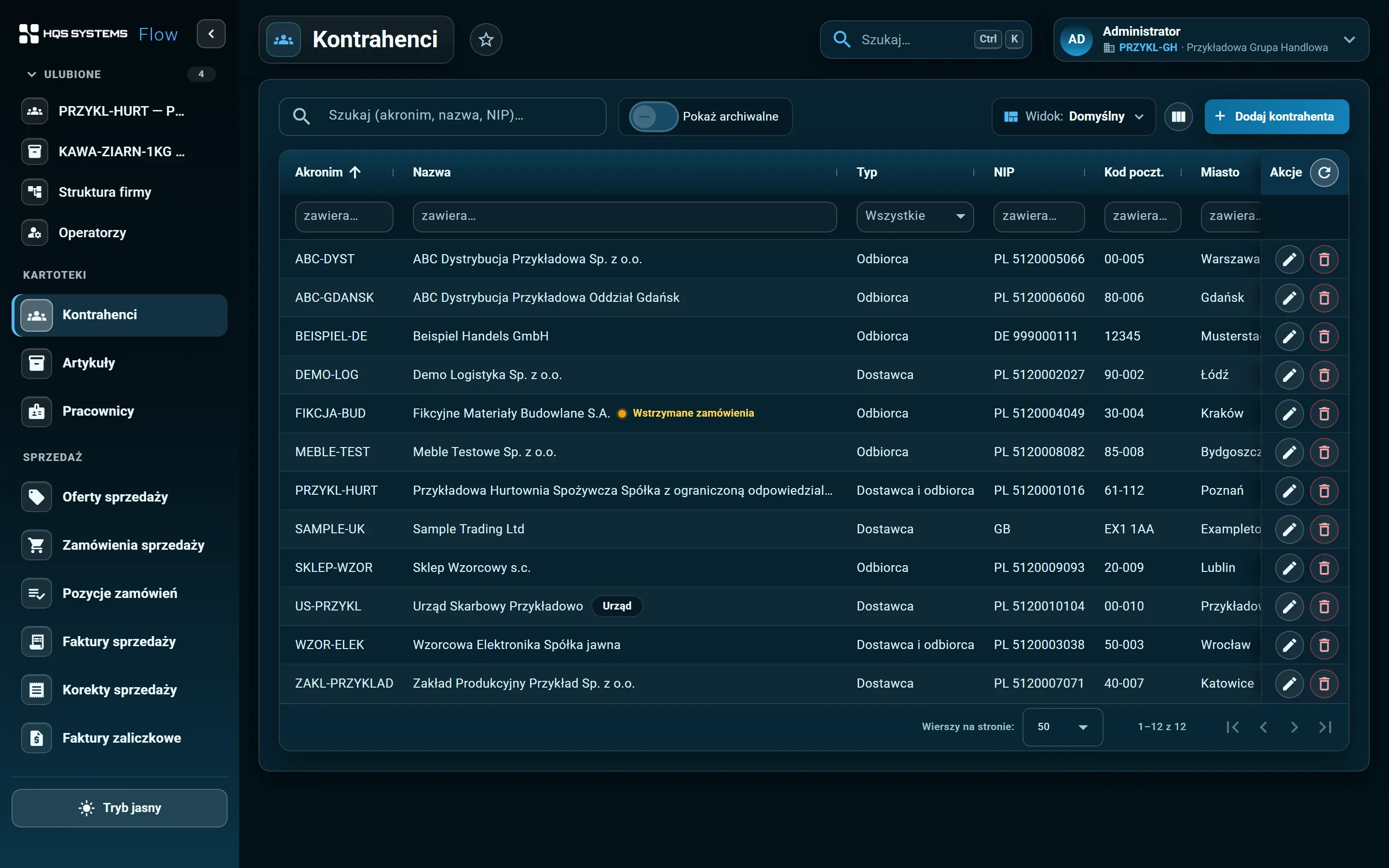
Light or dark, on large and small screens

An interface in HQS colours, with a light and a dark theme. The layout adapts to the screen width.

Screenshots from the working system

Shared mechanisms in screenshots

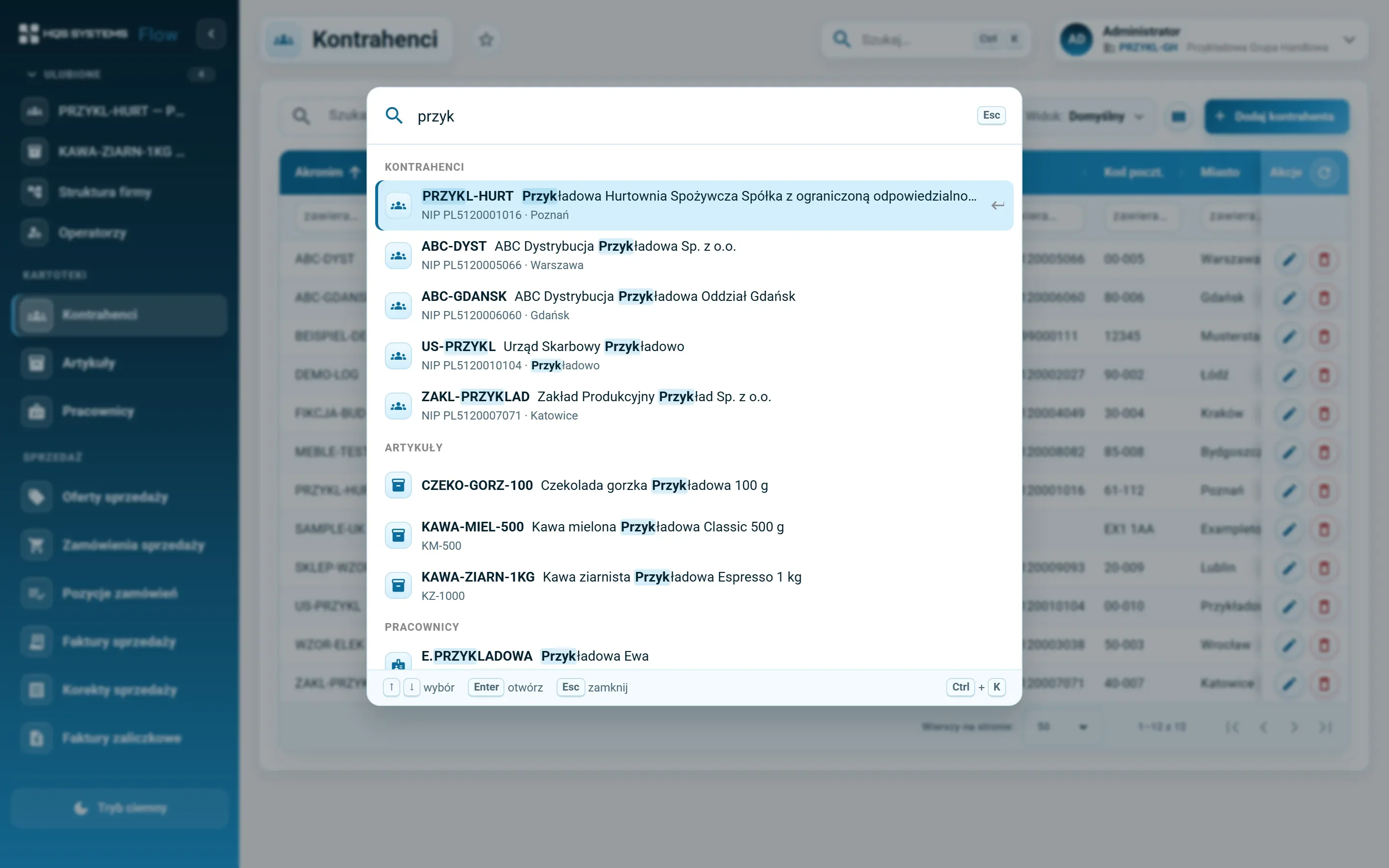
The Ctrl+K search window with the query “przyk” and results grouped into customers, items and employees, with the match highlighted
Ctrl+K. Results grouped by record type, the match highlighted, choose with the arrow keys and Enter.
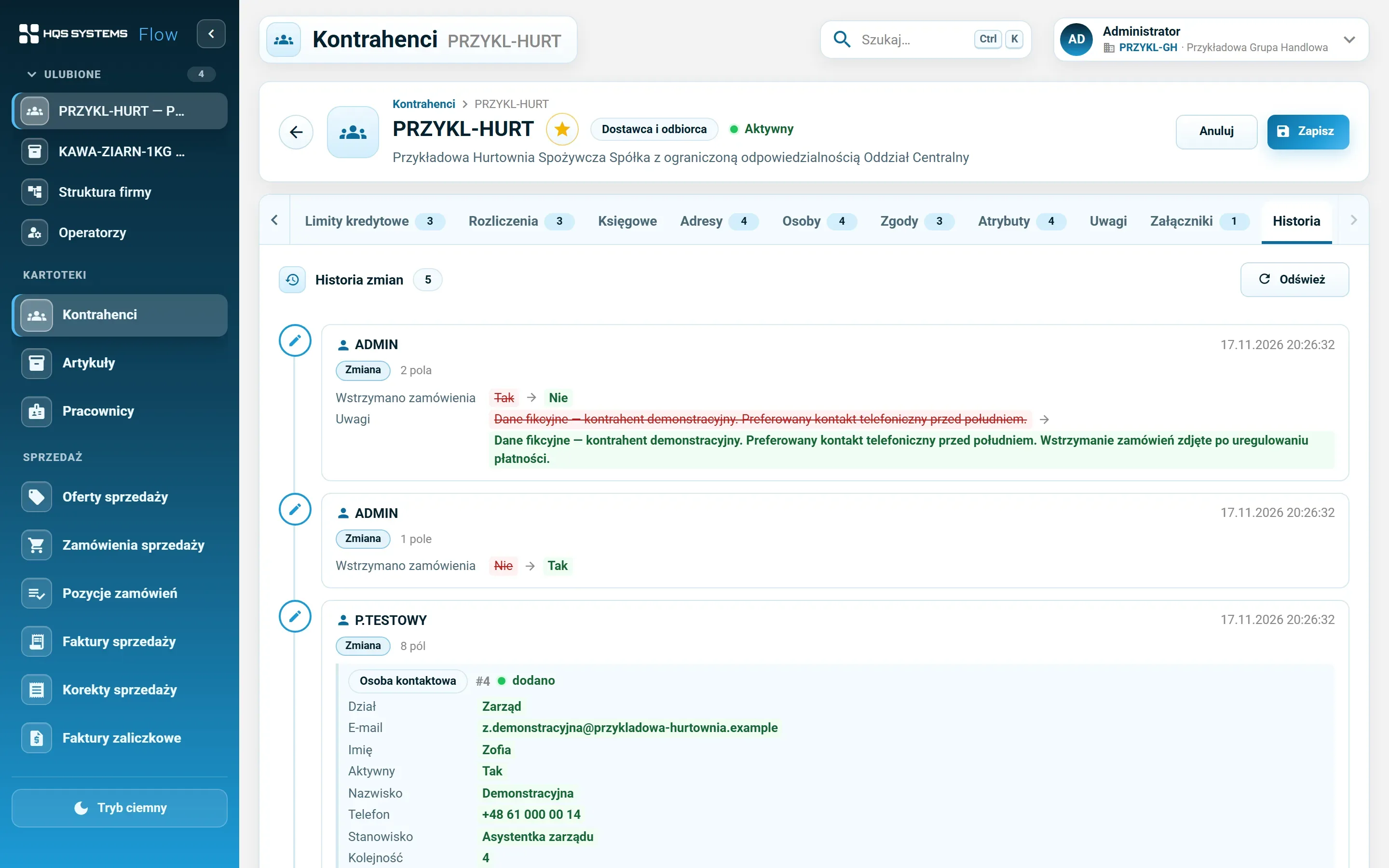
The History tab of a customer record — a timeline of saves with operator, date and the changed fields with values before and after
Customer history. Every save with operator and time, changed fields with the value before and after.
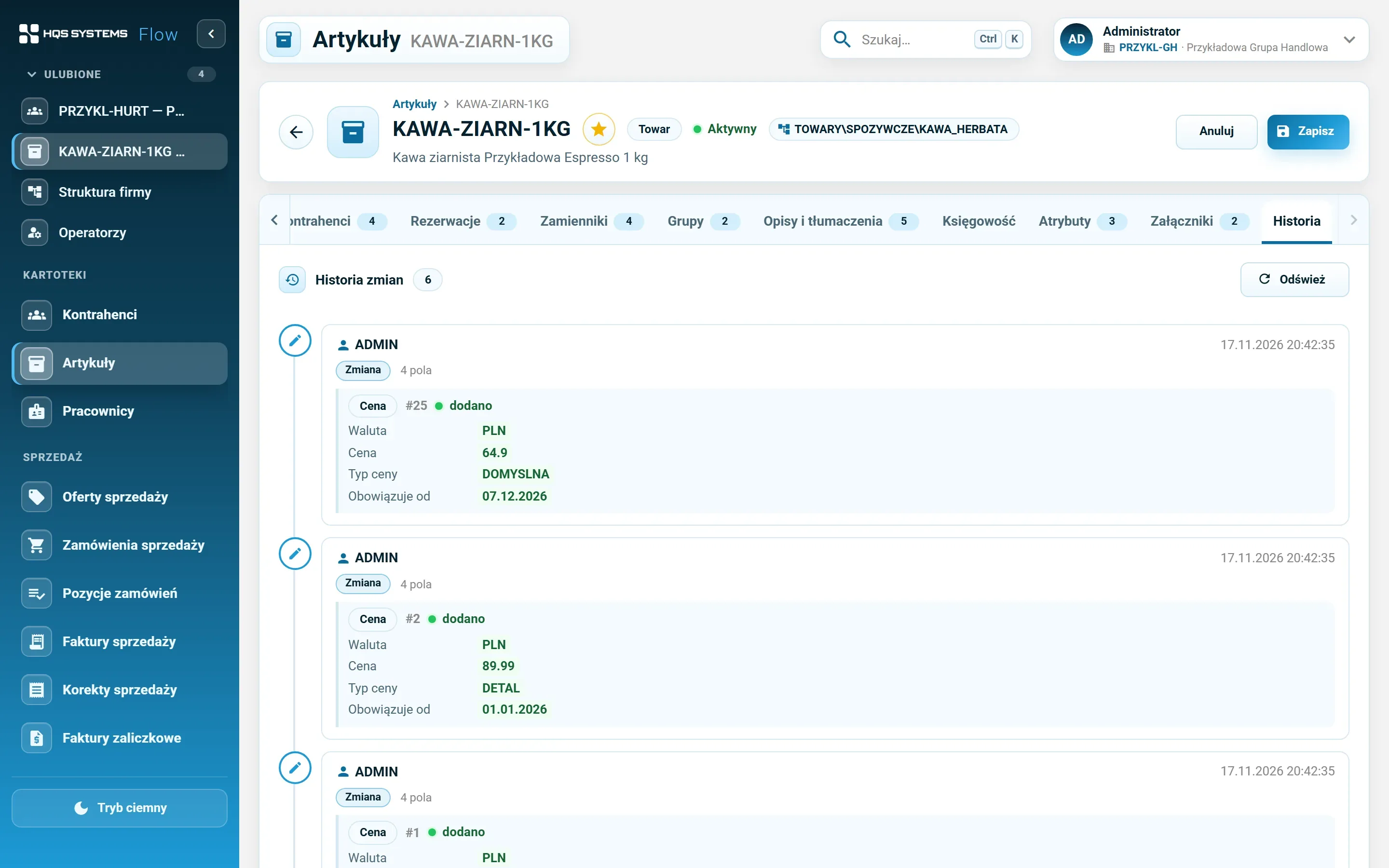
The History tab of an item record — changes to margin, delivery time and additional name, and an added VAT rate for an EU country
Item history — including changes on other tabs, such as an added VAT rate for an EU country.
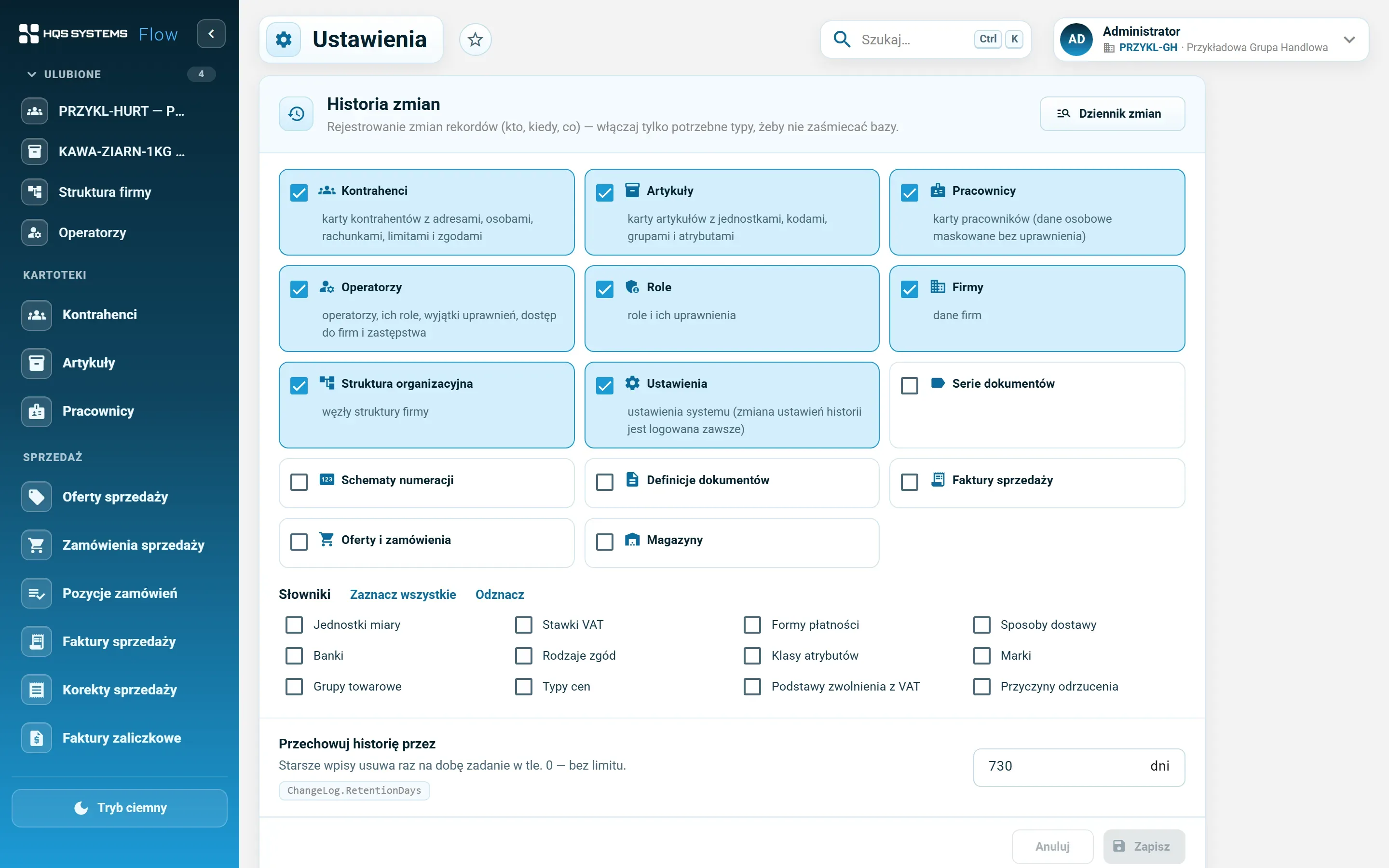
Settings — the Change history section with checkboxes for the record types whose history is logged
The administrator decides which records keep a history and for how long.
The change log screen — changes from all registers with date, operator, record type, action and a summary of changes, with date and operator filters
The system-wide change log — filtered by date, operator and record type.
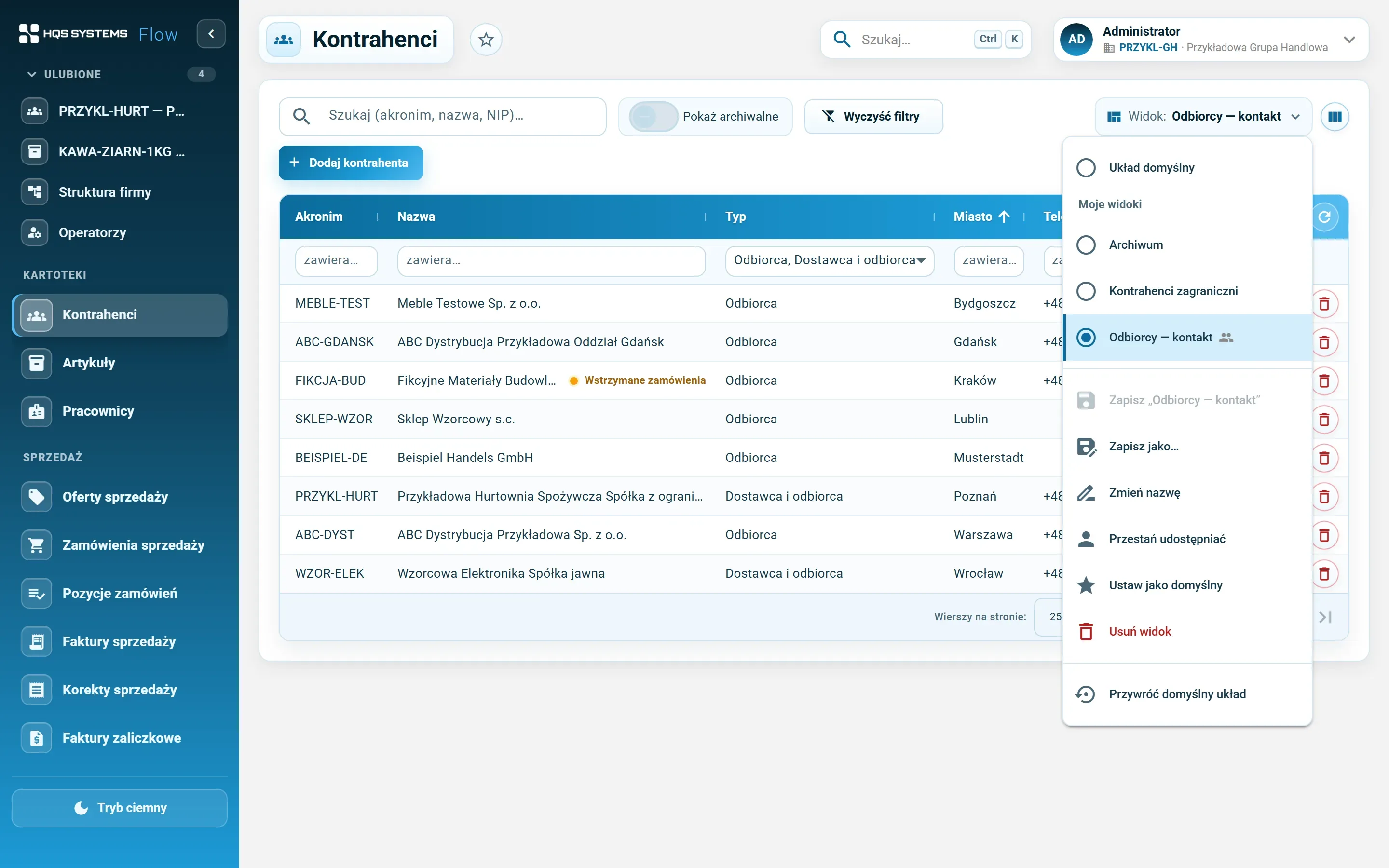
The customer list with the views menu open — default layout, own views and a shared view, with Save and Save as commands
Saved list views. Your own and shared ones, with a default view per list.
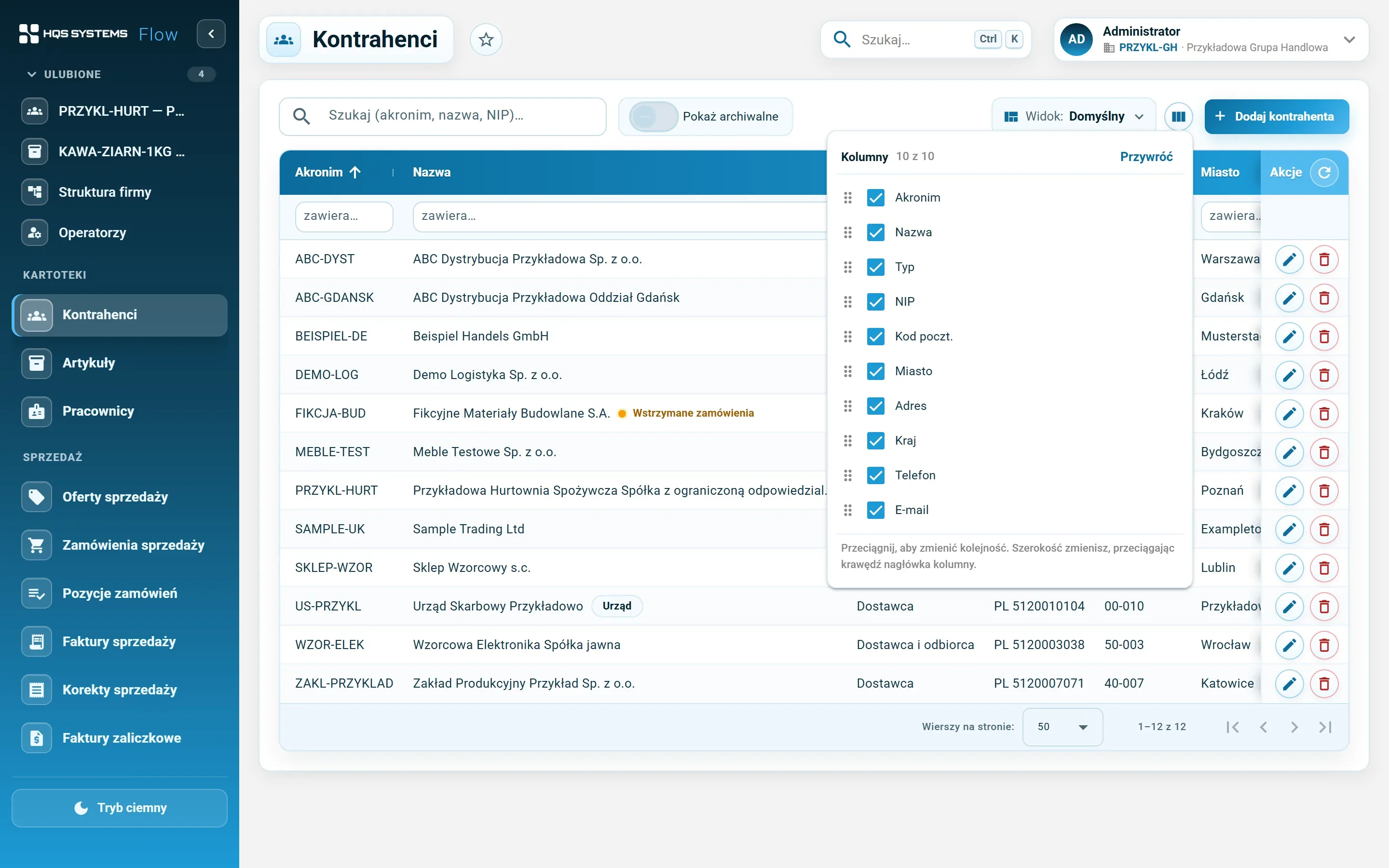
The column chooser of the customer list — checkboxes next to the columns and handles to reorder them by dragging
The column chooser — show, hide, drag to another position. Widths are changed on the header.
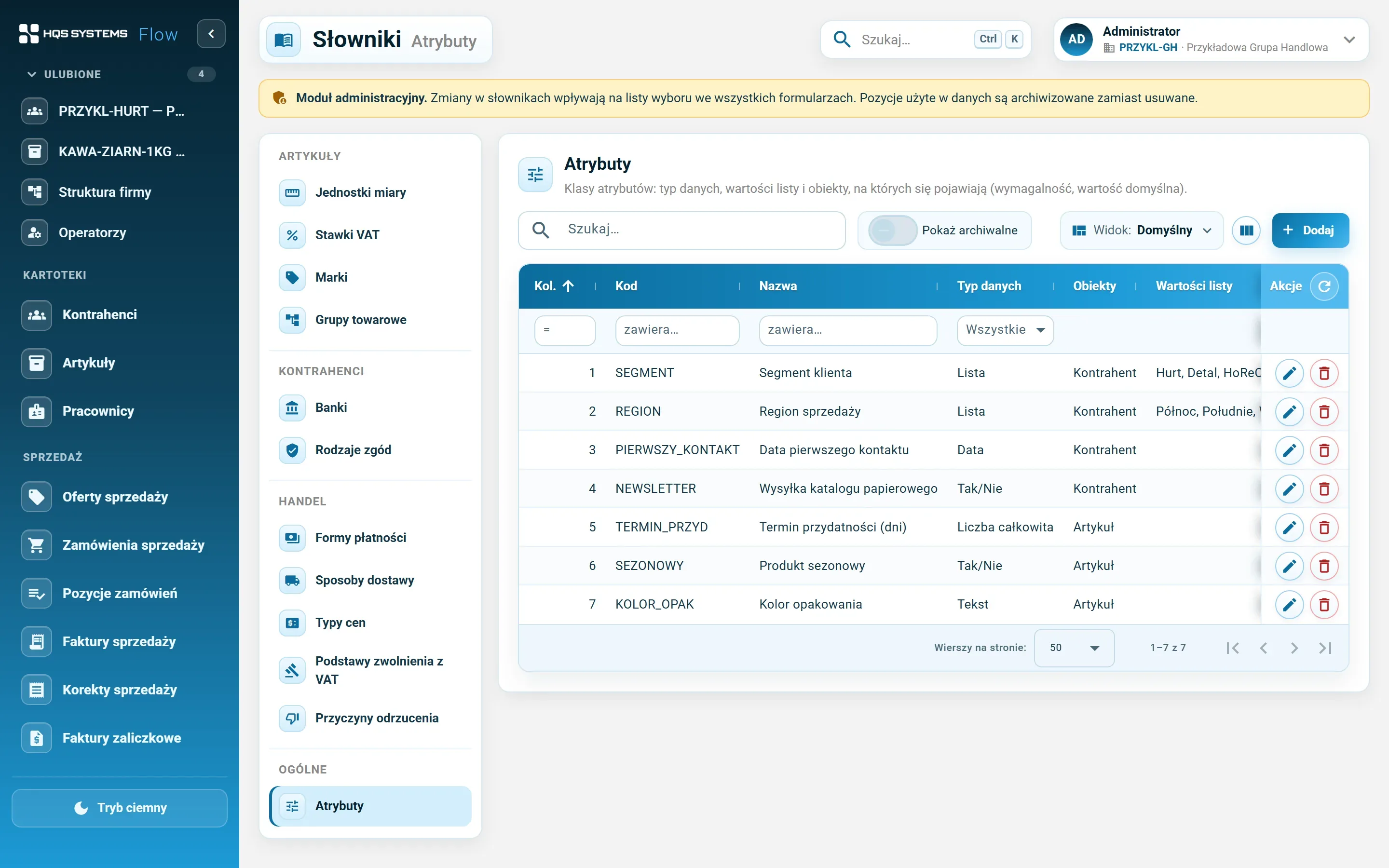
The Dictionaries module — dictionary menu in sections and the list of attribute classes with data type, scope and required flag
The Dictionaries module. Here the administrator defines attributes — name, data type, record type, whether required.
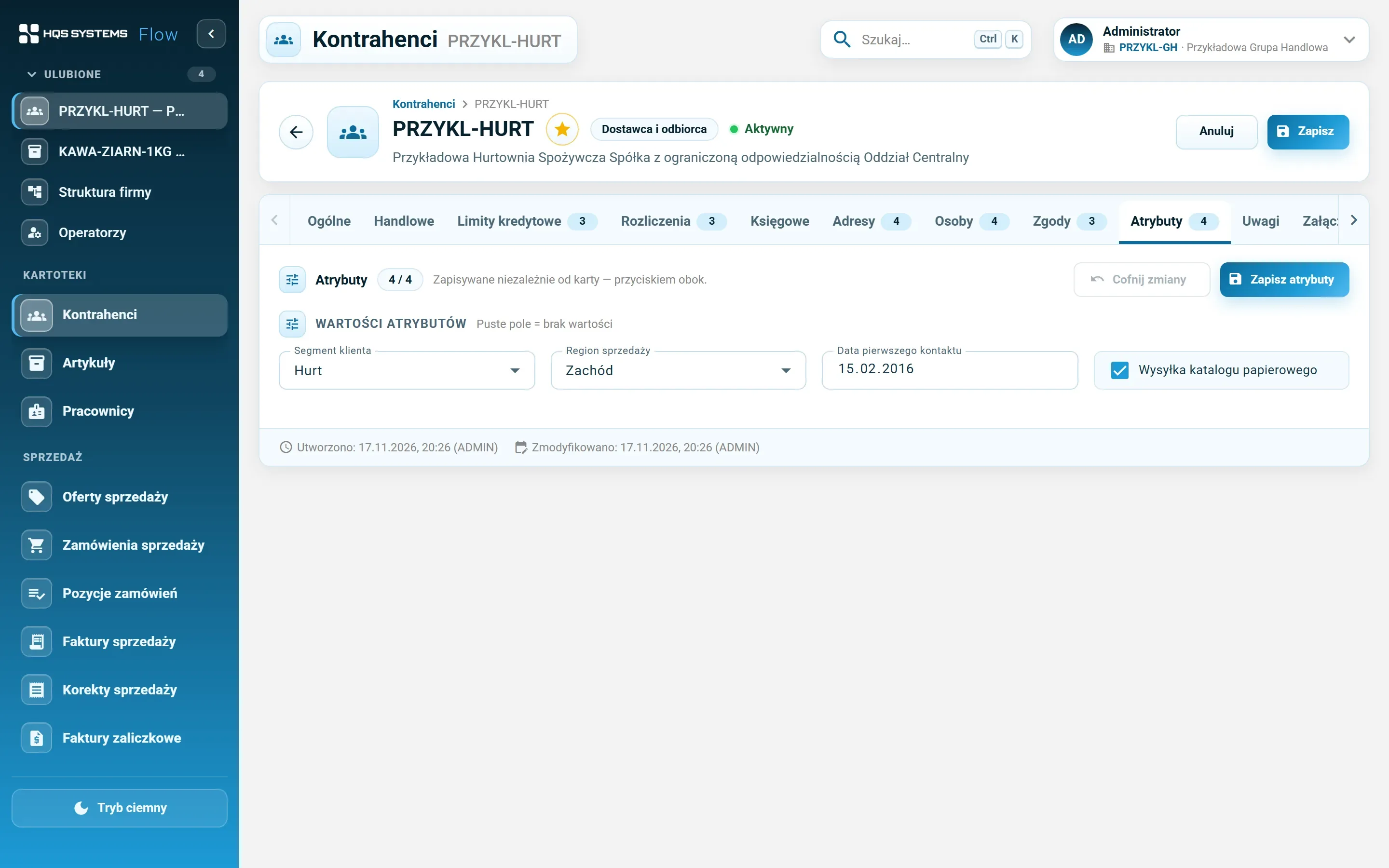
The Attributes tab of a customer record — customer segment, sales region, date of first contact and a checkbox
Attributes on a customer record — the form builds itself from each field's type.
The Attachments tab — a file list on the left and a product photo preview on the right
Attachments with an image preview. The size limit and blocked extensions are set by the administrator.
The customer list in the dark theme with the Favourites section in the side menu
The dark theme and the “Favourites” section in the side menu — the records and screens you return to most.

Click a screenshot to see it at full resolution. All data in the screenshots is fictional. The application interface is in Polish.

Ctrl+K instead of clicking through menus

Press Ctrl+K anywhere in the application (or click the “Search…” box in the header) and start typing. HQSFlow searches customers (code, name, tax ID), items (code, name, symbol, every barcode), employees of the current company, operators and companies at once — and the names of screens in the menu too. Results respect permissions: nobody sees records in search that they have no access to. With no query, the window shows recently opened records.

Change history — with an on/off switch

“Who changed this customer’s payment term?” — the answer is on the record’s History tab. Each save is one entry on a timeline: operator, date and time, and below it the fields with their values before and after. Dictionary values show by name, not by number, and changes on other tabs (addresses, contacts, bank accounts, limits, consents, units, barcodes, groups, attributes) appear on the record they belong to.

History nobody needs just takes up space. So the administrator switches logging on separately for each record type — customers, items, employees, operators, roles, companies, structure, settings and individual dictionaries — and sets a retention period; older entries are removed automatically. Security and configuration changes are logged from day one, and switching history on or off always leaves a trace. The Change log screen gathers changes from all registers in one place.

A list view that remembers how you work

A salesperson wants to see phone and e-mail, an accountant — tax ID and country. Instead of choosing columns every time, everyone saves their own list view: columns and their order, widths, filters, sorting, rows per page and the archived switch. A view can be set as the default, so the list opens in it straight away, or shared with the whole team. When the layout differs from the saved one, the system shows it. The mechanism is part of the shared list, so it works the same on every list in the system.

Attributes instead of requests to a developer

Every company has a few pieces of information no standard anticipated: customer segment, region, shelf life, packaging colour. In HQSFlow the administrator adds them as attributes in the Dictionaries module — chooses the data type (text, whole number, decimal, date, yes/no, list of values), decides whether the field is required, and which records it applies to. The field appears on the records straight away, with value validation.

Attachments where you look for them

The contract next to the customer, the data sheet and photo next to the item. Files are stored in the database — a database backup covers attachments too, with no separate network folder to look after. The maximum file size and the list of blocked extensions are set by the administrator.

Let's talk about your company

Tell us how many companies, customers and items you have and what you use today. We will show HQSFlow on examples close to yours and tell you honestly what it already handles — and what it doesn't yet.

Book a demo

We answer every request personally, usually within one working day.

Please enter your name.
Please enter a valid e-mail address.
Please check the phone number or leave the field empty.
Please tell us briefly what the demo should cover.
How we handle your data

The controller of your data is HQS Systems. We use what you send here only to answer your request and to carry on the resulting conversation, and we keep it no longer than that requires. You can ask us at any time to show, correct or delete your data by writing to office@hqs.cloud.